Genova
Claims Setup
Creating and Managing Claims: A Step-by-Step Guide
This guide provides a comprehensive walkthrough of the process for creating and managing claims within the system. Each step includes a screenshot to aid in navigation and understanding. Follow these instructions carefully to ensure accurate completion of each task.
Start url: http://localhost/vanguard-genova/cia/admin
Tab Name: GENOVA INSURANCE
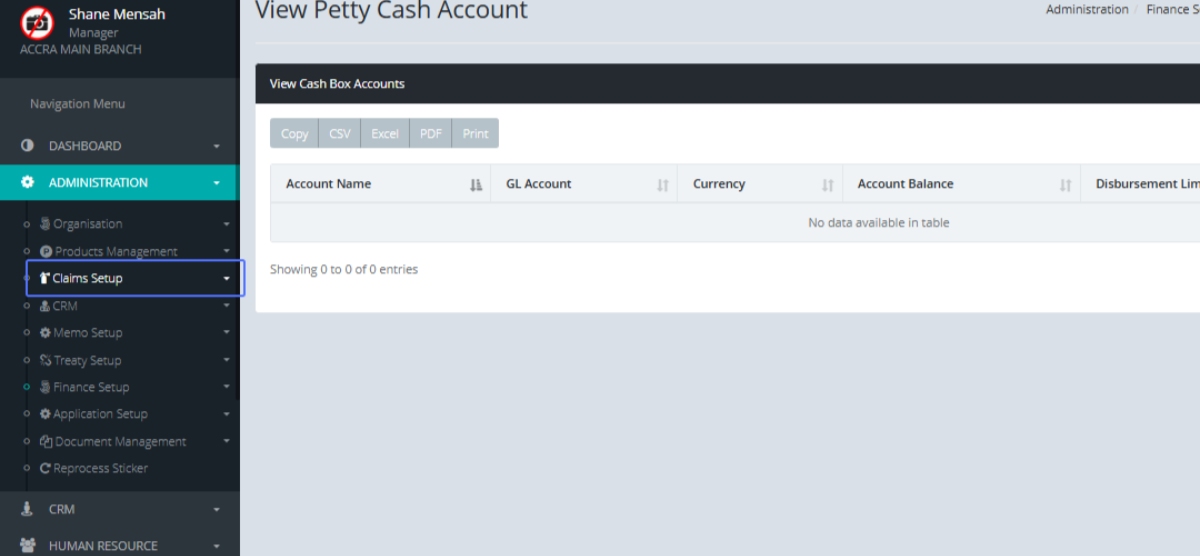
Click on the link "Claims Setup" to see the listed submenus
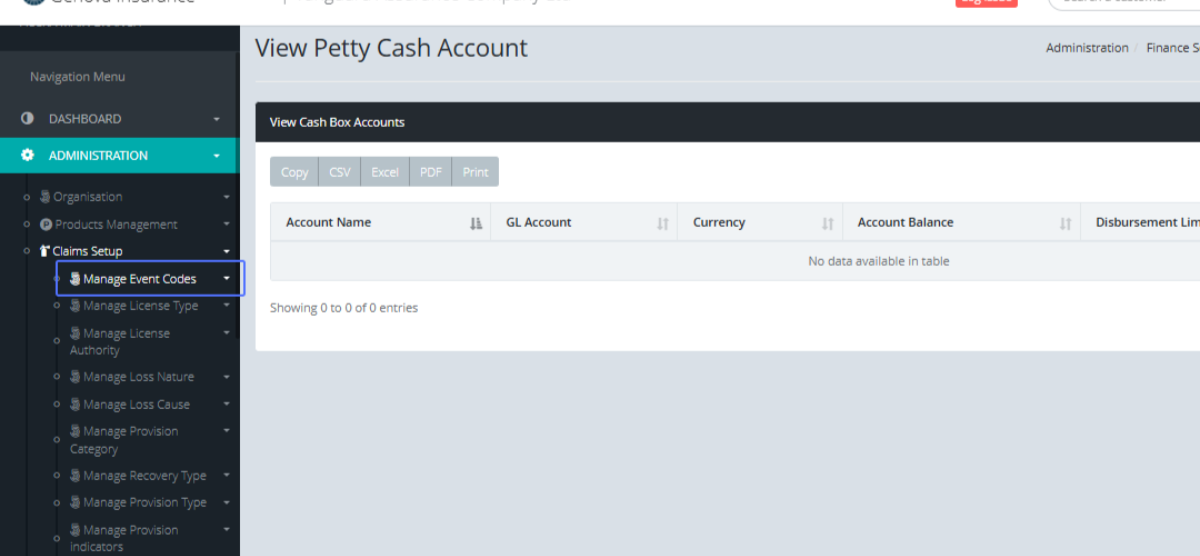
Click on the link "Manage Event Codes" to see the listed submenus
Click on the link "Create Event Code" to open the Event Code creation Form

Tab Name: Create Event Code - GENOVA INSURANCE
Enter the code into the provided Input field
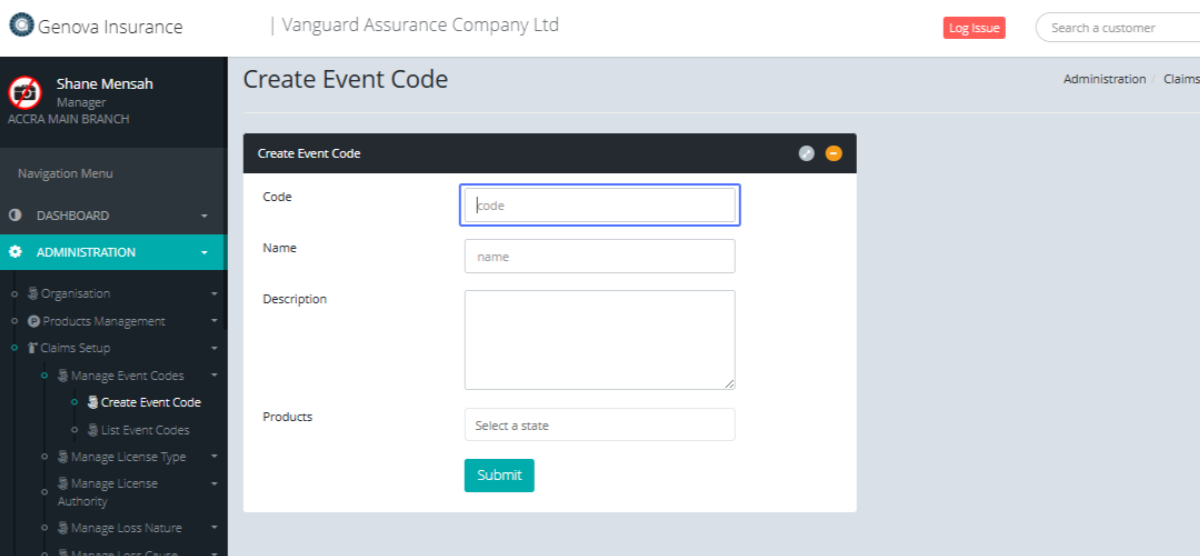
Enter the name into the provided Input field

Enter the description into the provided input field
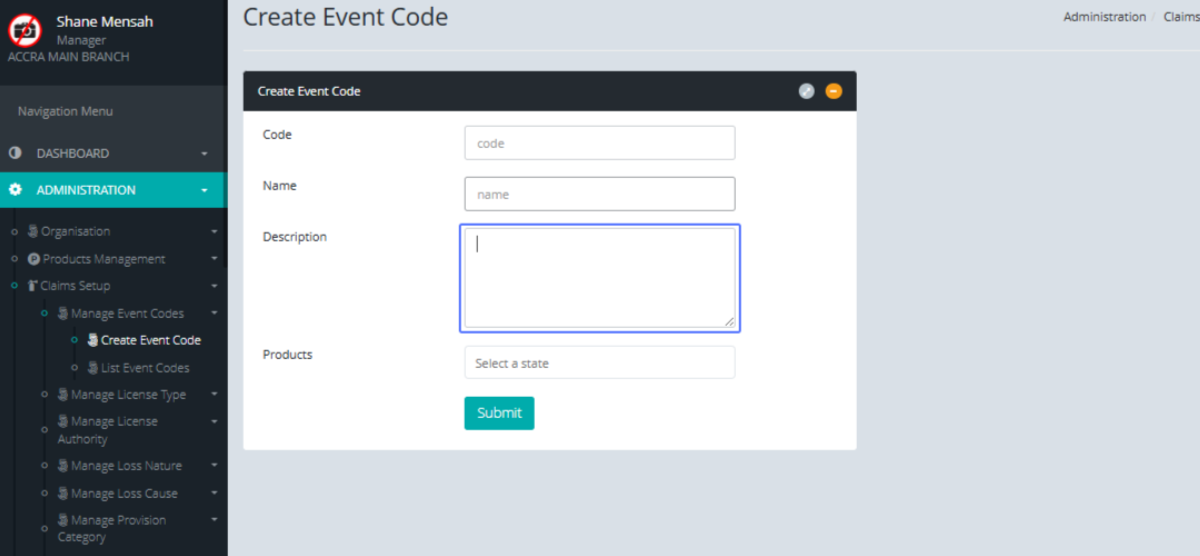
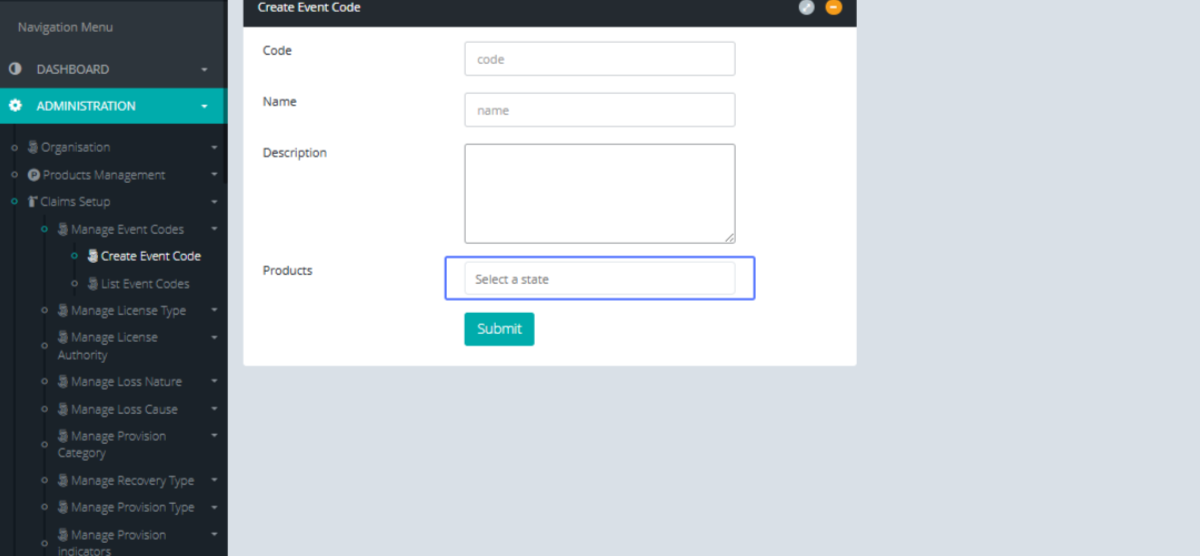
Select the products from the available list
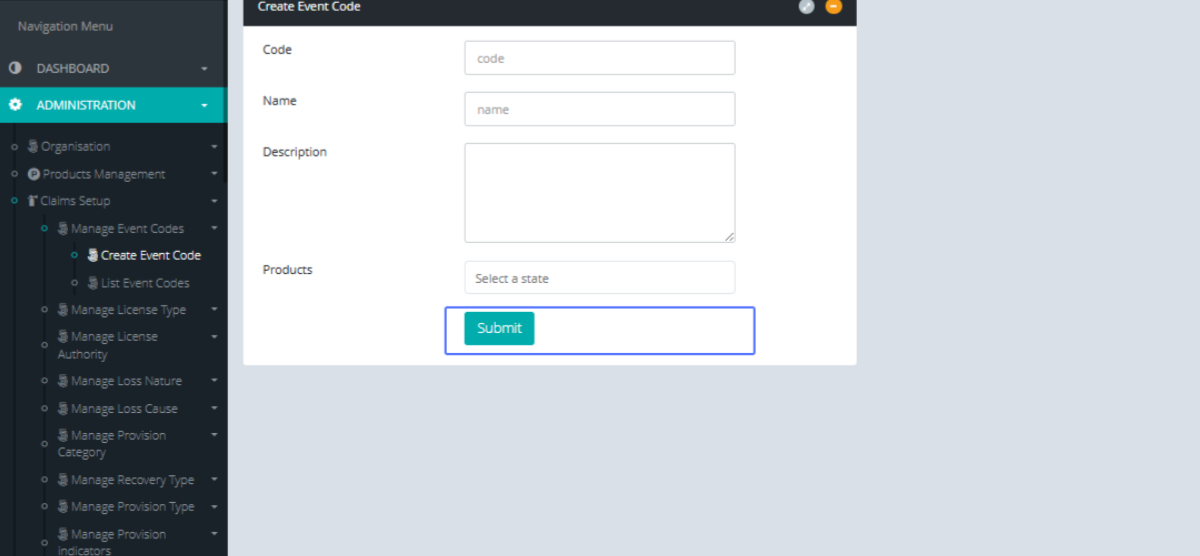
Click on "Submit" to save the Event Code
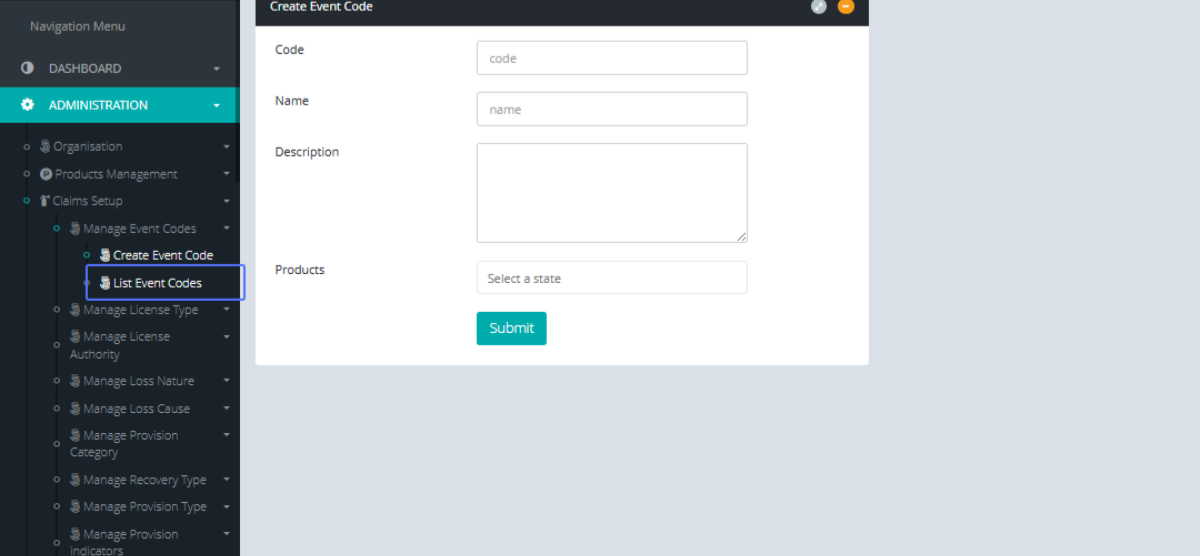
Click on the link "List Event Codes" to view the Event Code list
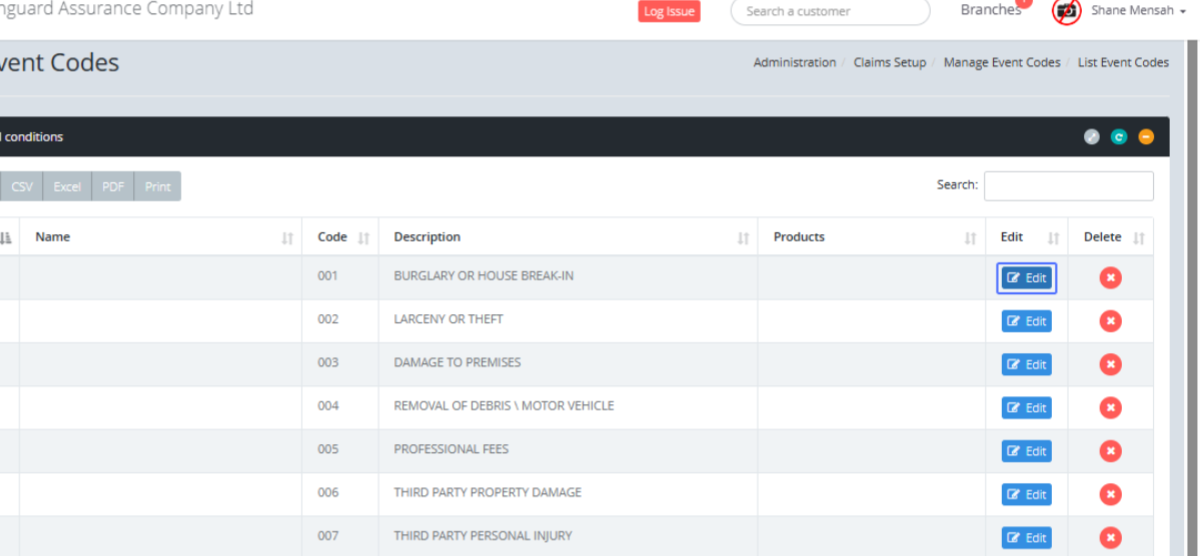
Tab Name: List Event Codes - GENOVA INSURANCE
Click on the "Edit" button to edit the specific list item
Tab Name: Create Event Code - GENOVA INSURANCE
You then get navigated to the existing Event Code form
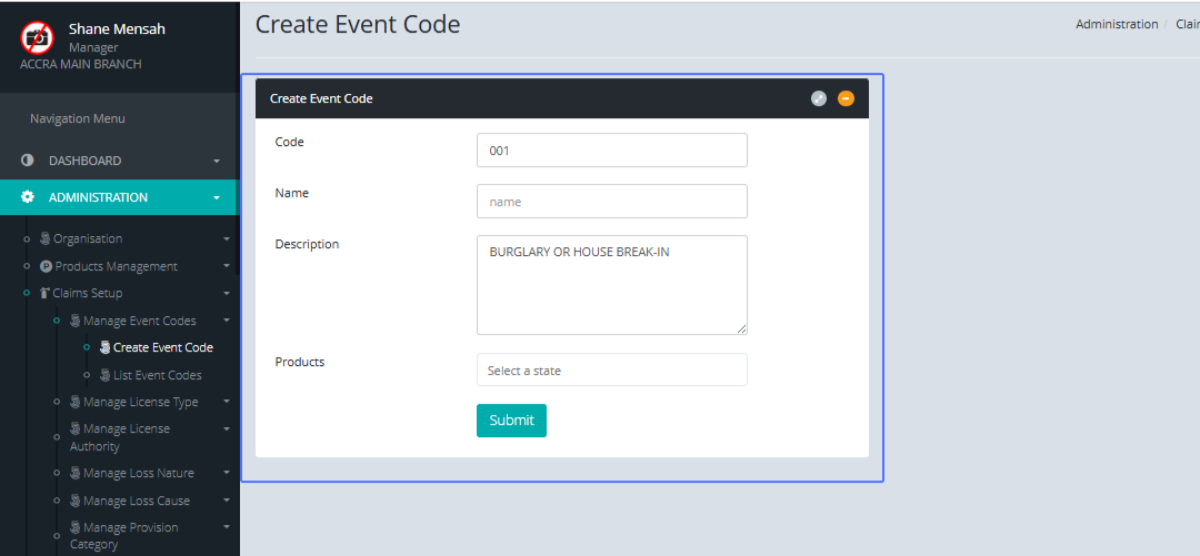
Click on the link "Manage License Type" to see the submenus
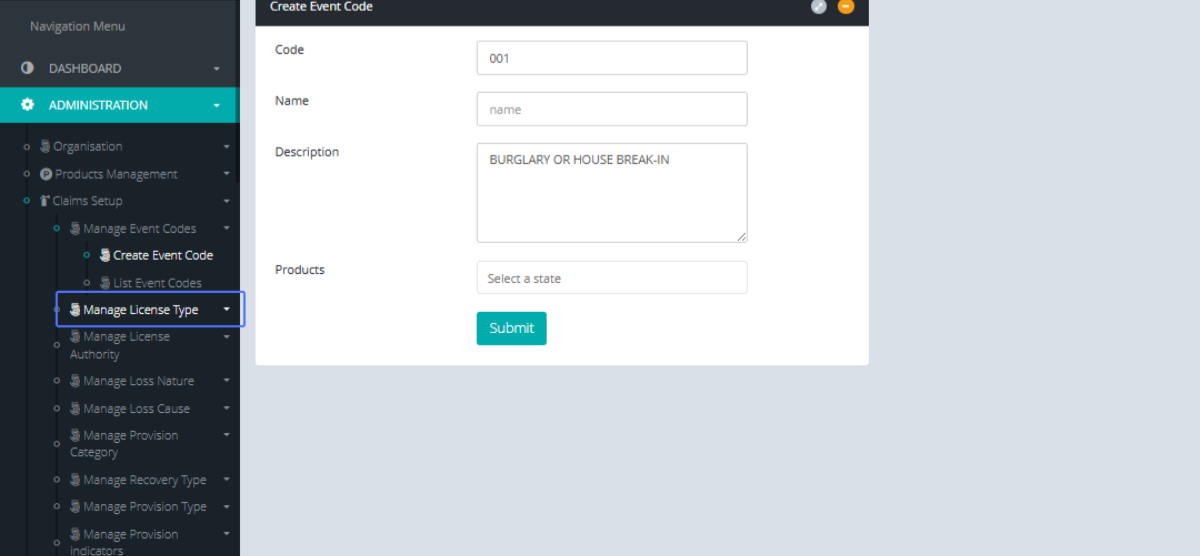
Click on the link "Create License Type" to navigate to the License tab creation Page
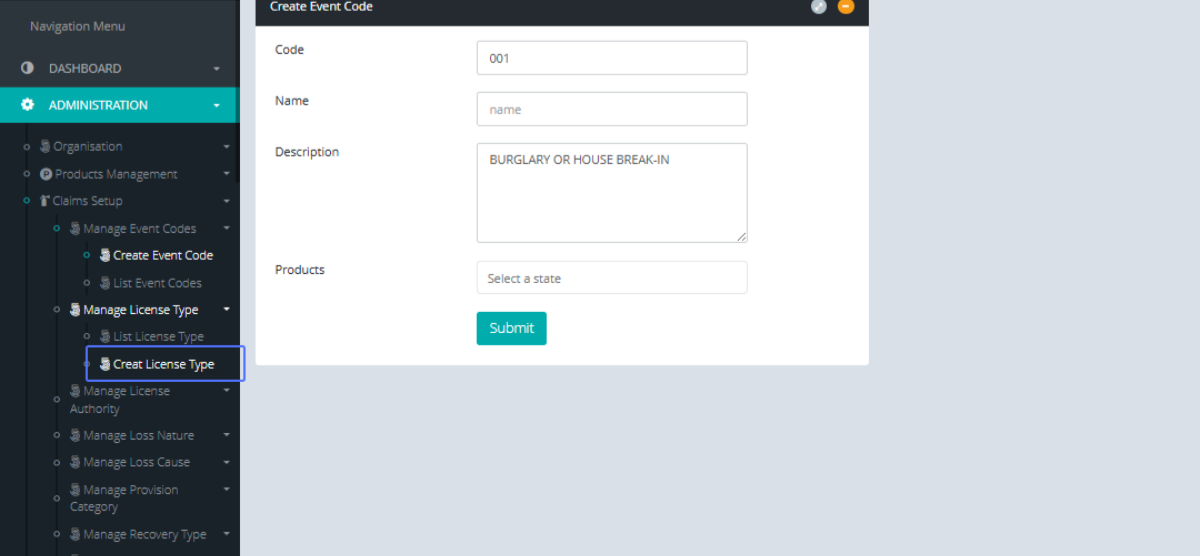
Tab Name: Create License Type - GENOVA INSURANCE
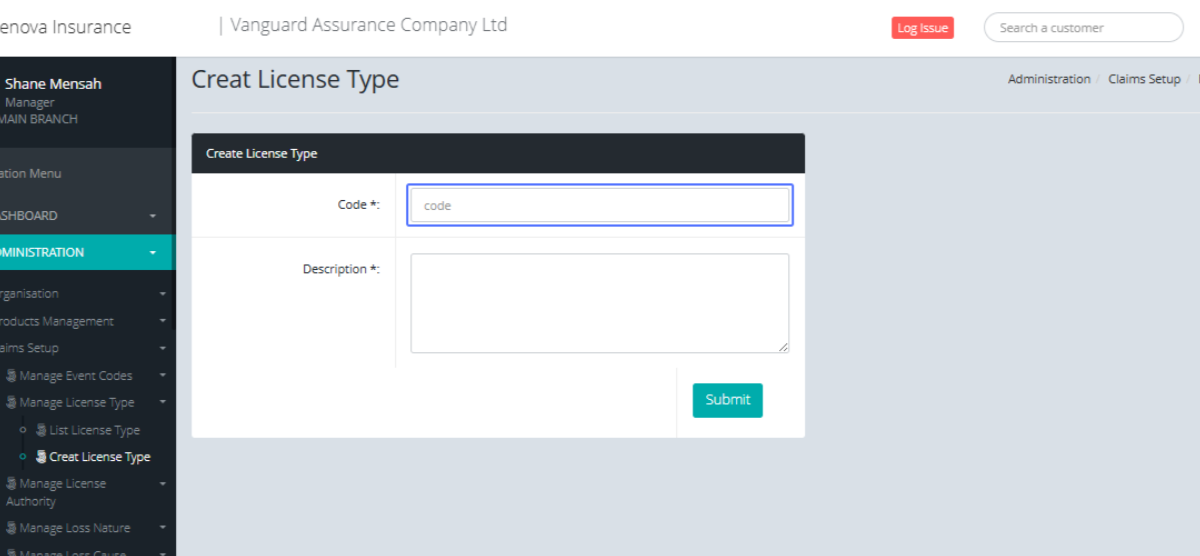
Enter the code in the provided input
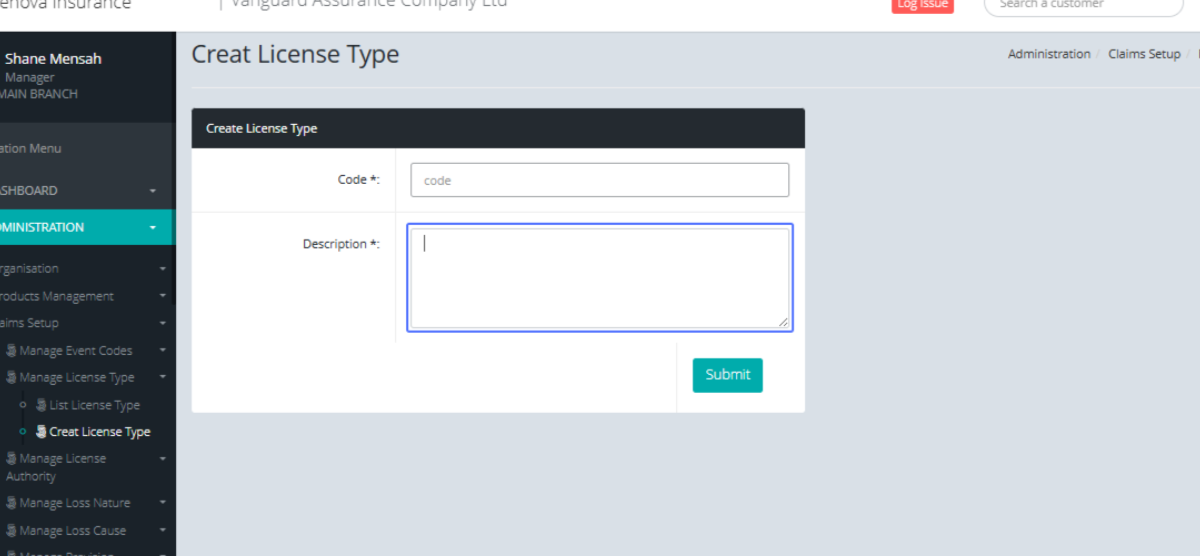
Enter the description in the provided input
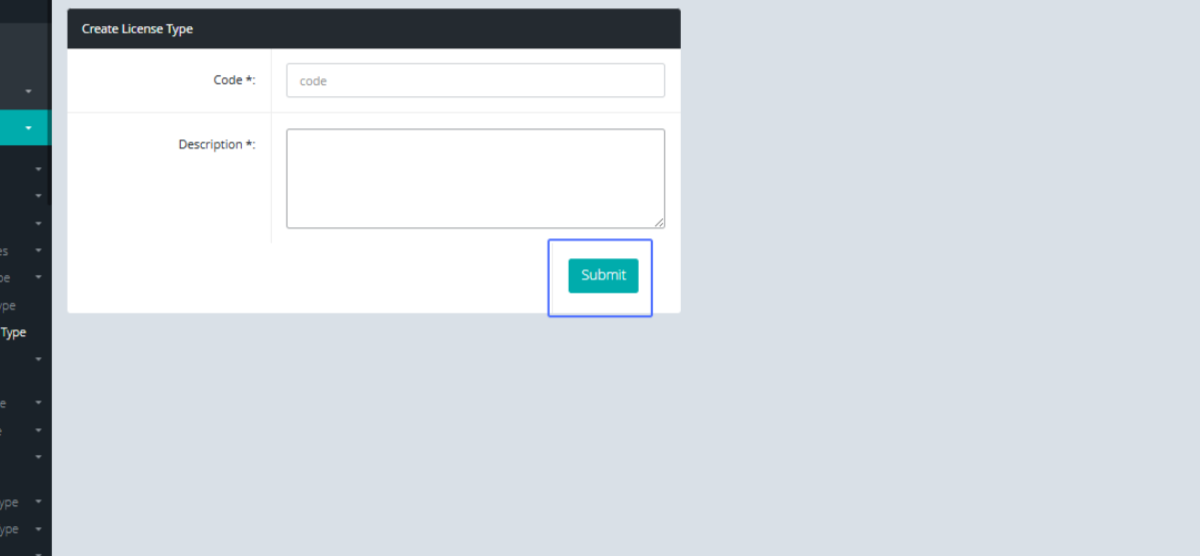
Click on "Submit" to save the License type
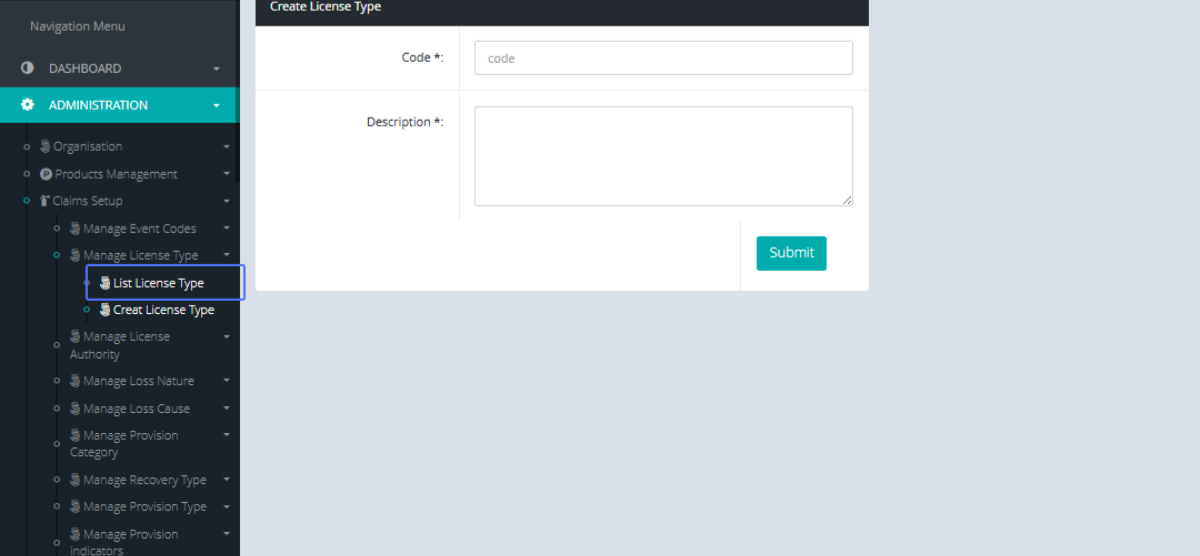
Click on the link "List License Type" to see the License type list
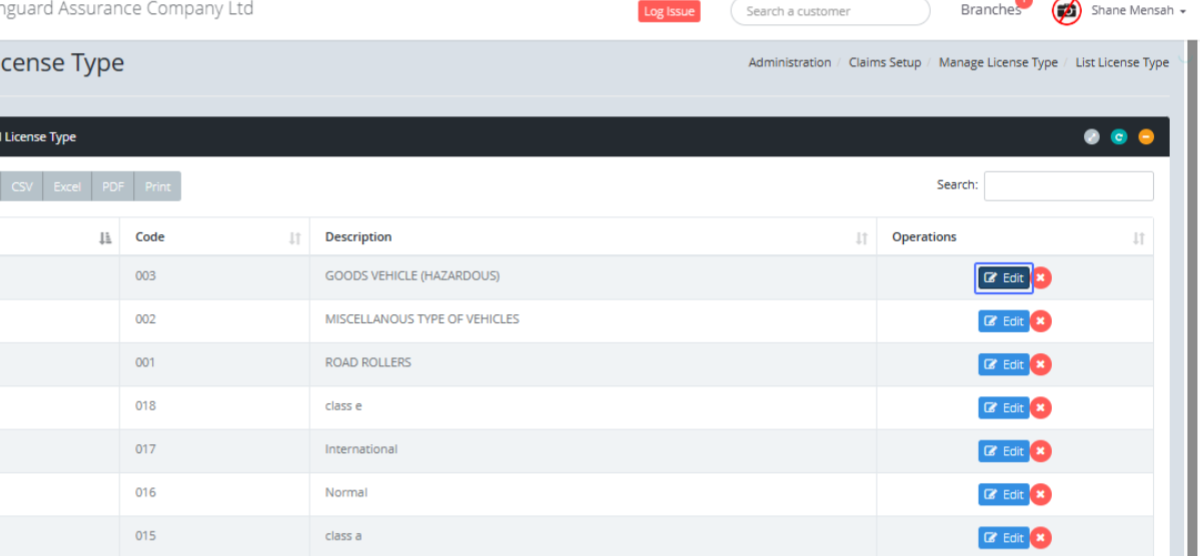
Tab Name: List License Type - GENOVA INSURANCE
Click on the "Edit" button to edit the specific item
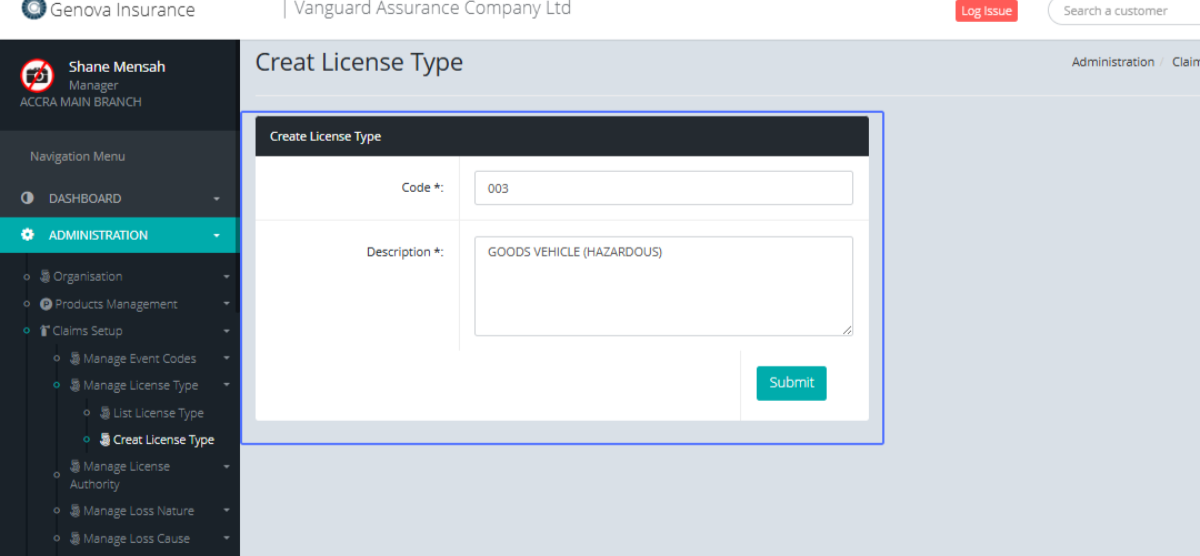
Tab Name: Create License Type - GENOVA INSURANCE
You will be navigated to the Existing license type form
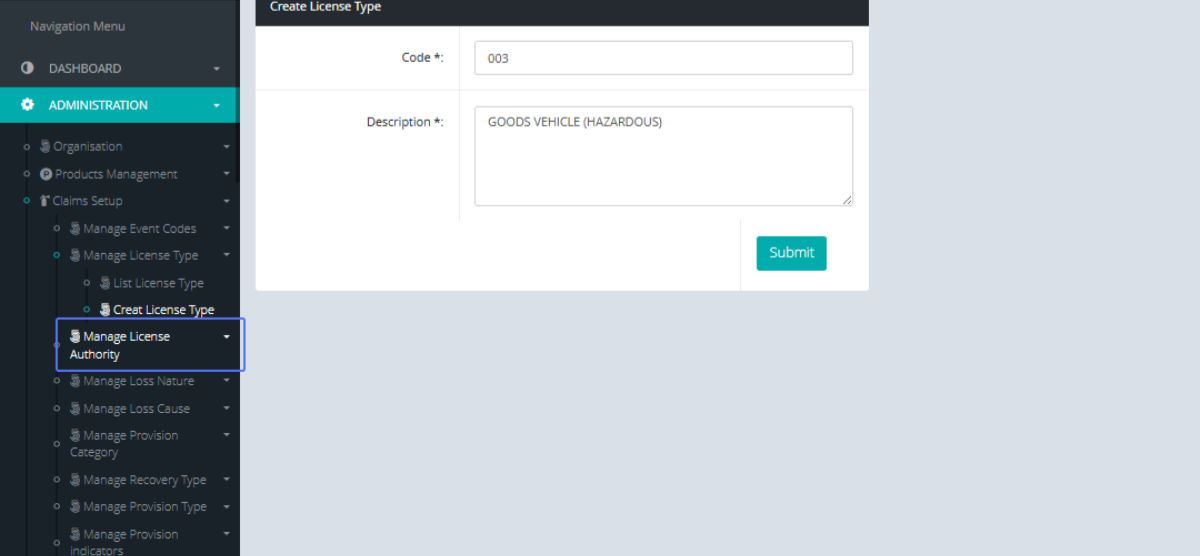
Click on the link "Manage License Authority" to view the available submenus
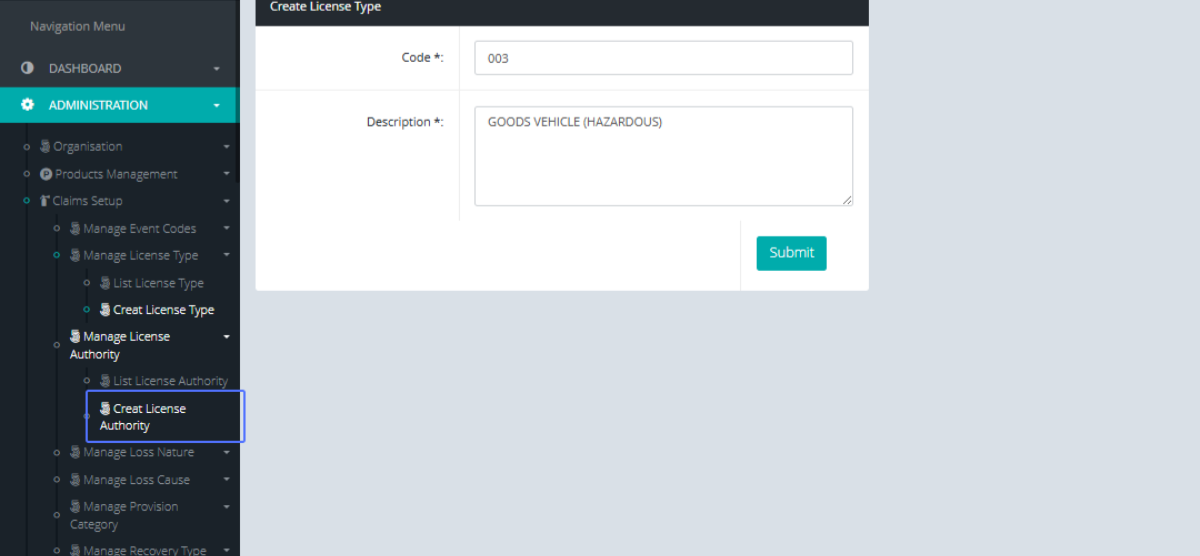
Click on the link "Create License Authority" to navigate to the License Authority creation Page
Tab Name: Create License Authority - GENOVA INSURANCE
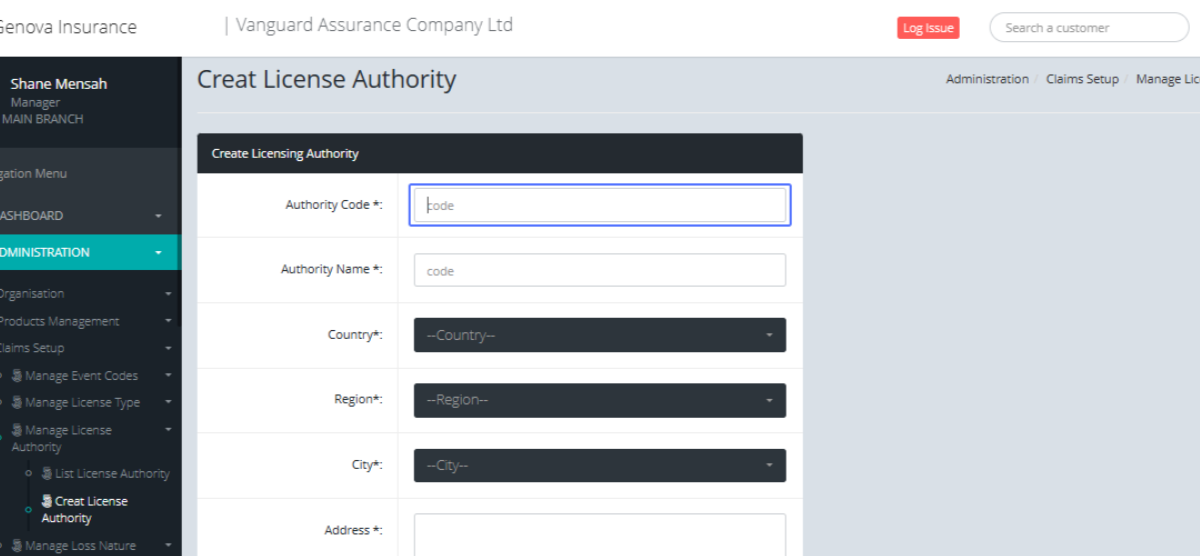
Enter the Authority Code into the provided input field
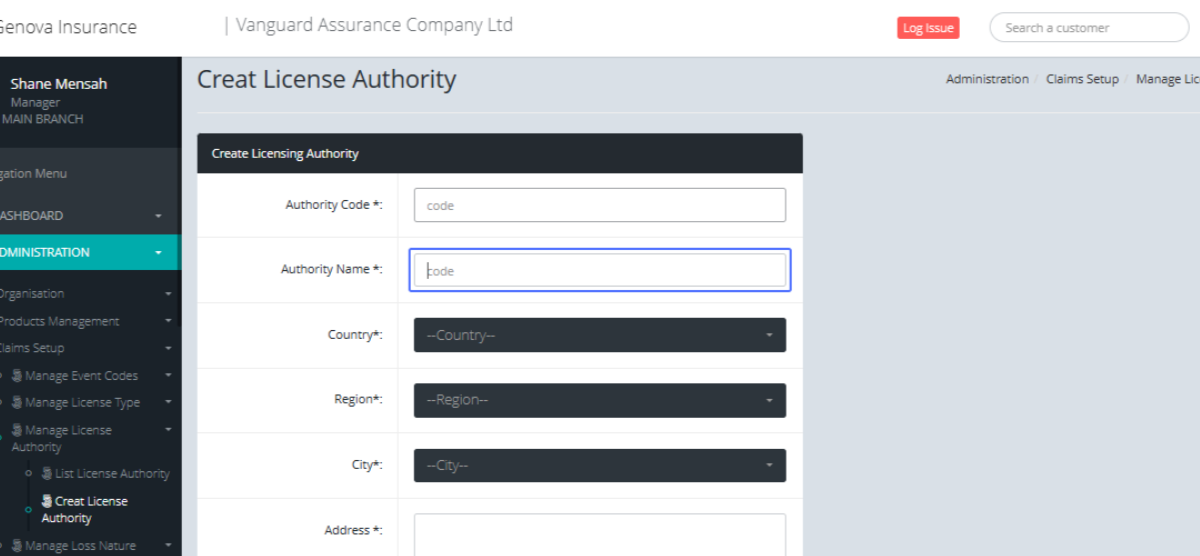
Enter the Authority Name into the provided input field
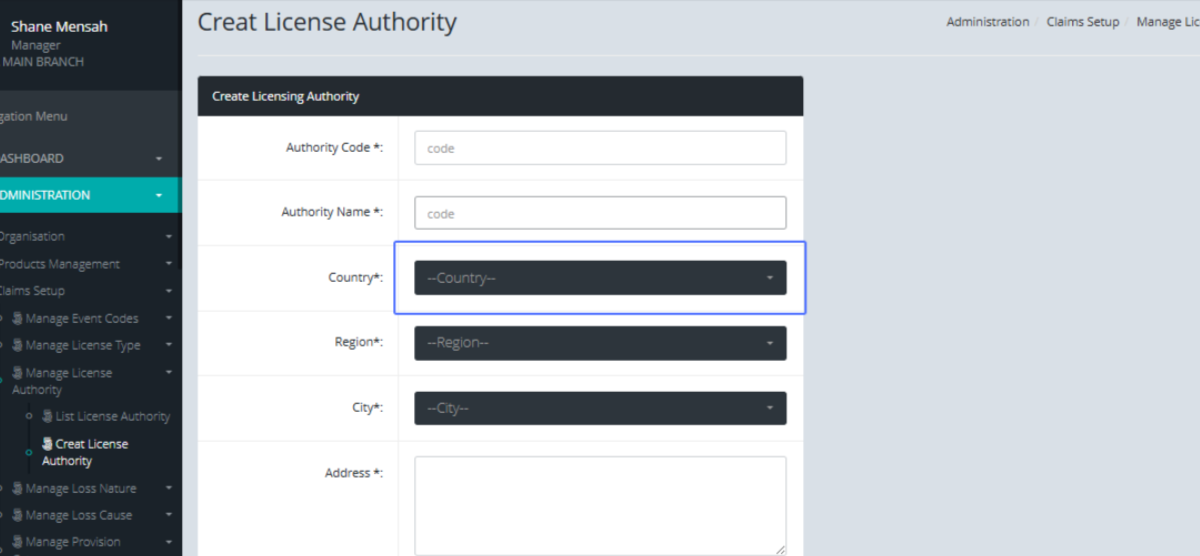
Select the country from the provided list
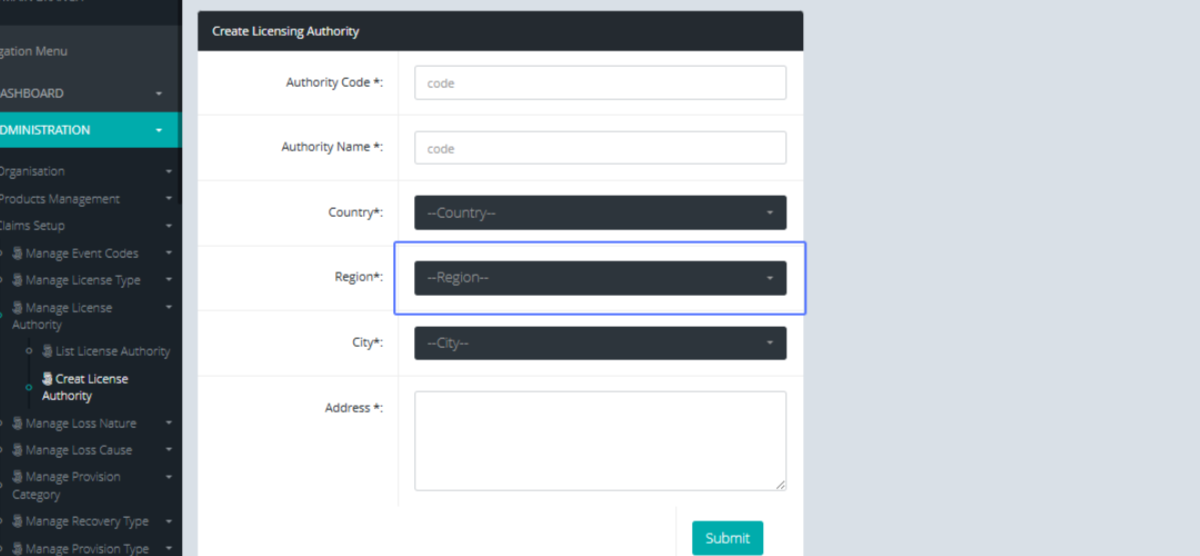
Select the Region from the provided list
Select the City from the provided List
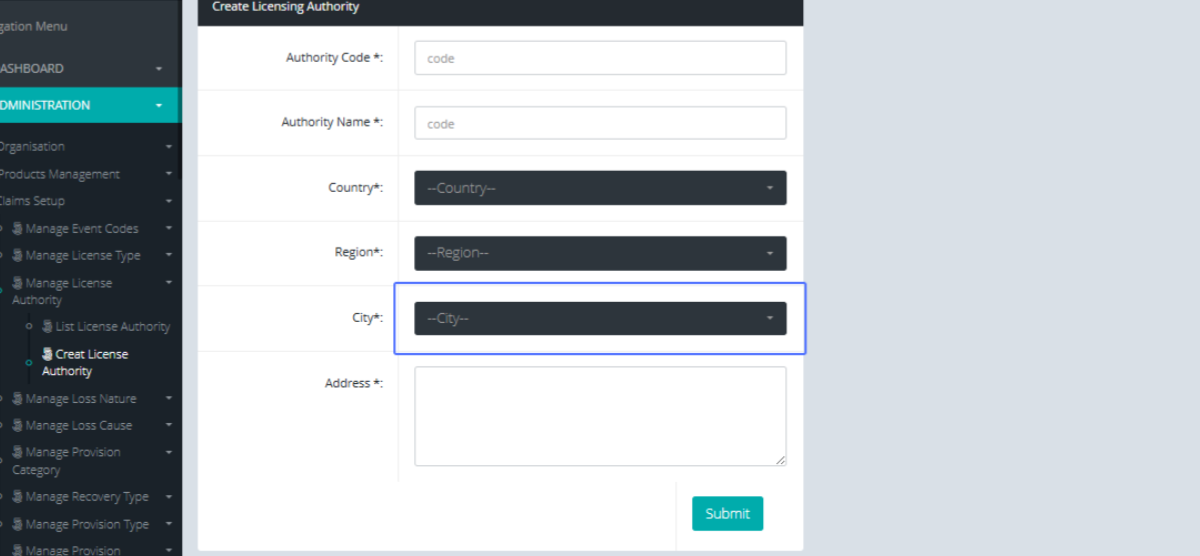
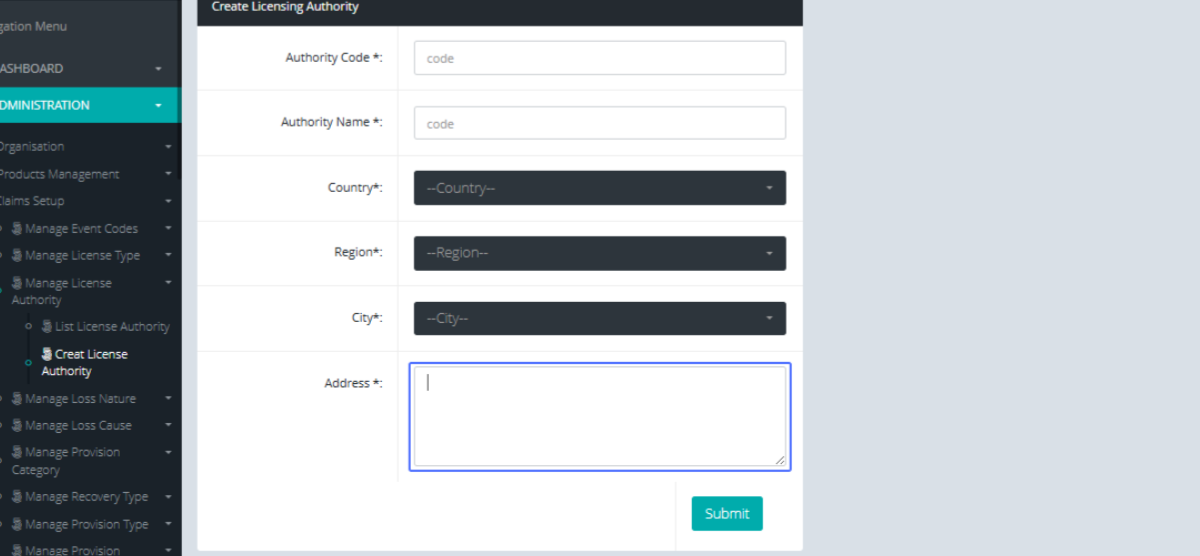
Enter the Address within the provided input field
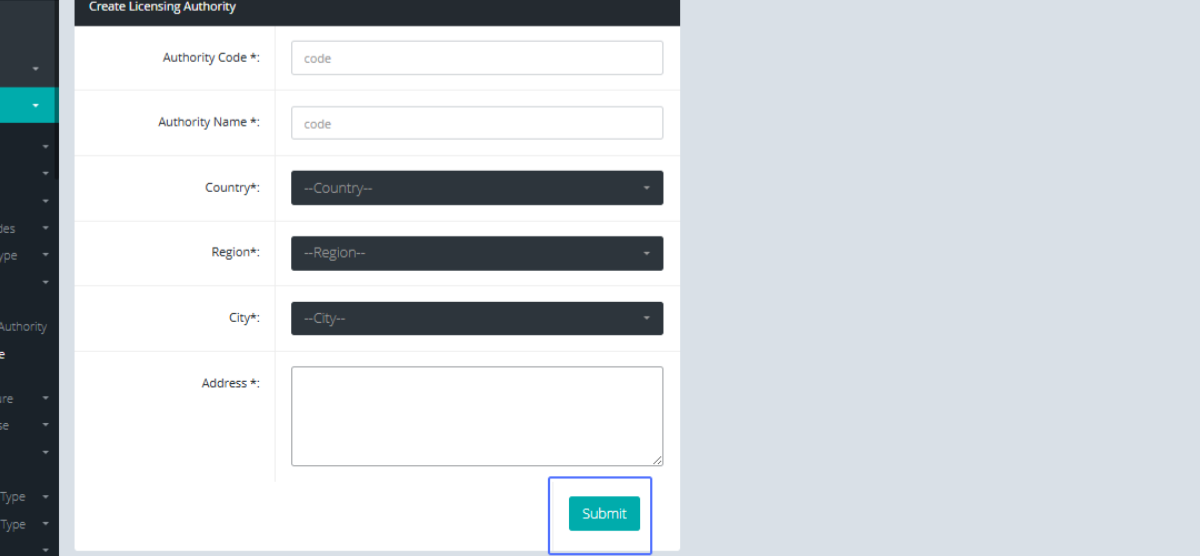
Click on "Submit" t save the License Authority
Click on the link "List License Authority" to get navigated to the License Authority list
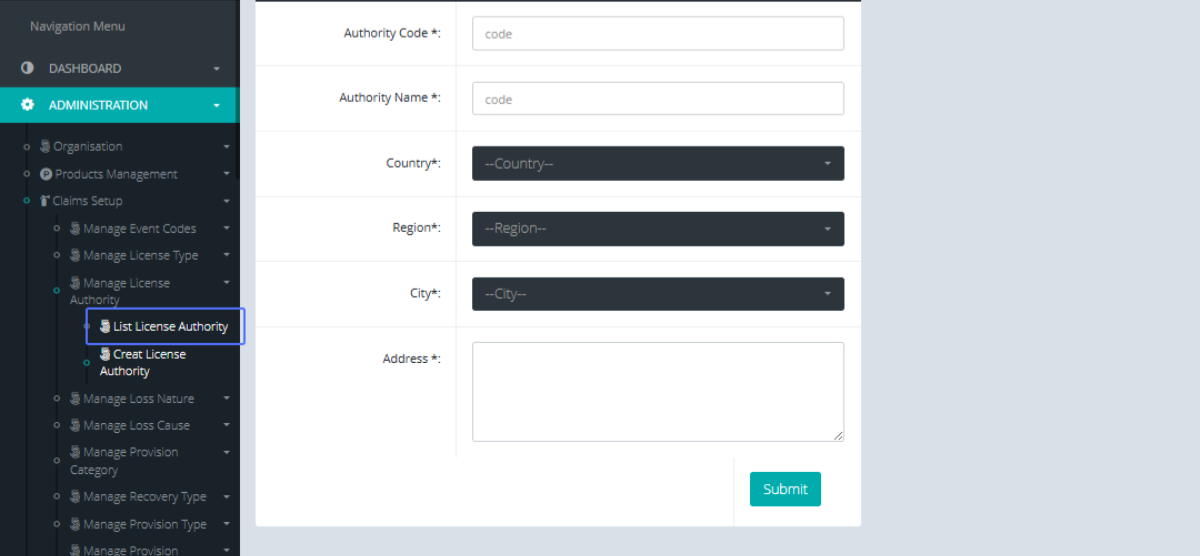
Tab Name: Manage License Authority - GENOVA INSURANCE
Click on the "Edit" button to edit the selected item
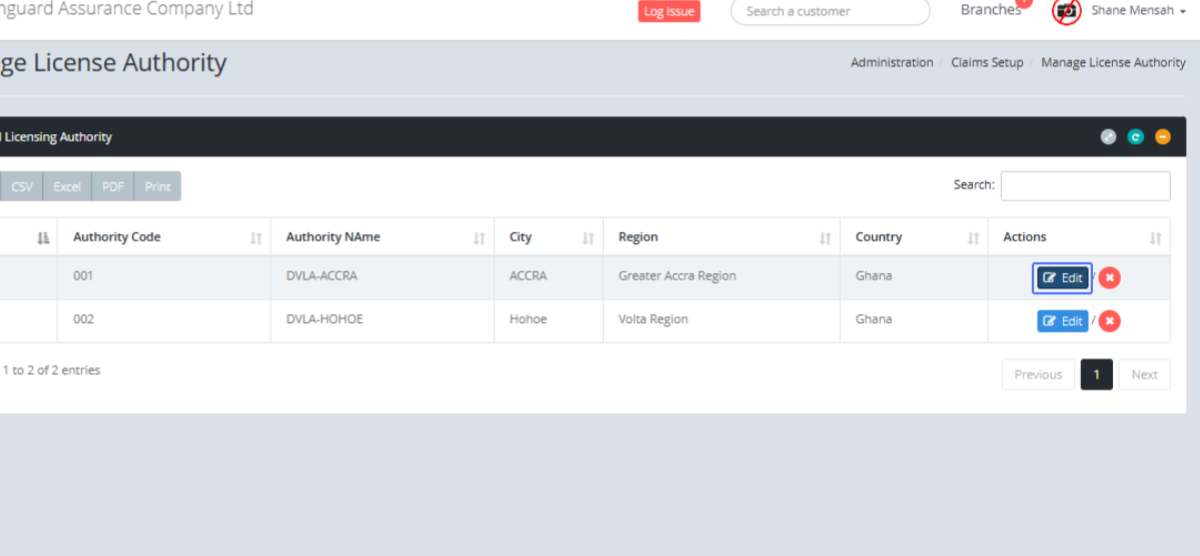
Tab Name: Create License Authority - GENOVA INSURANCE
You will be presented with a form for the existing License Authority to edit
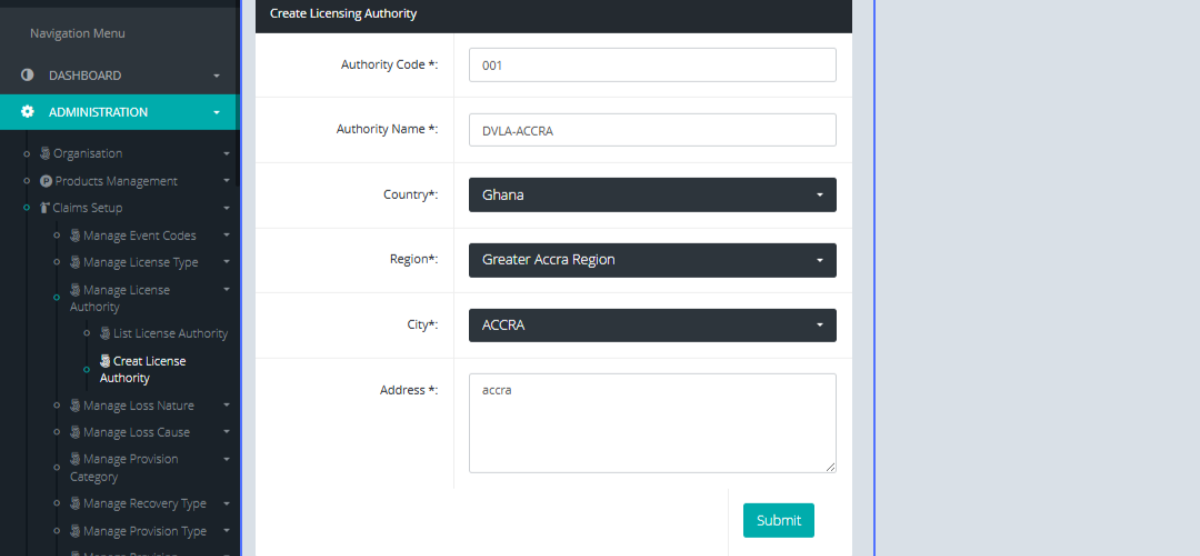
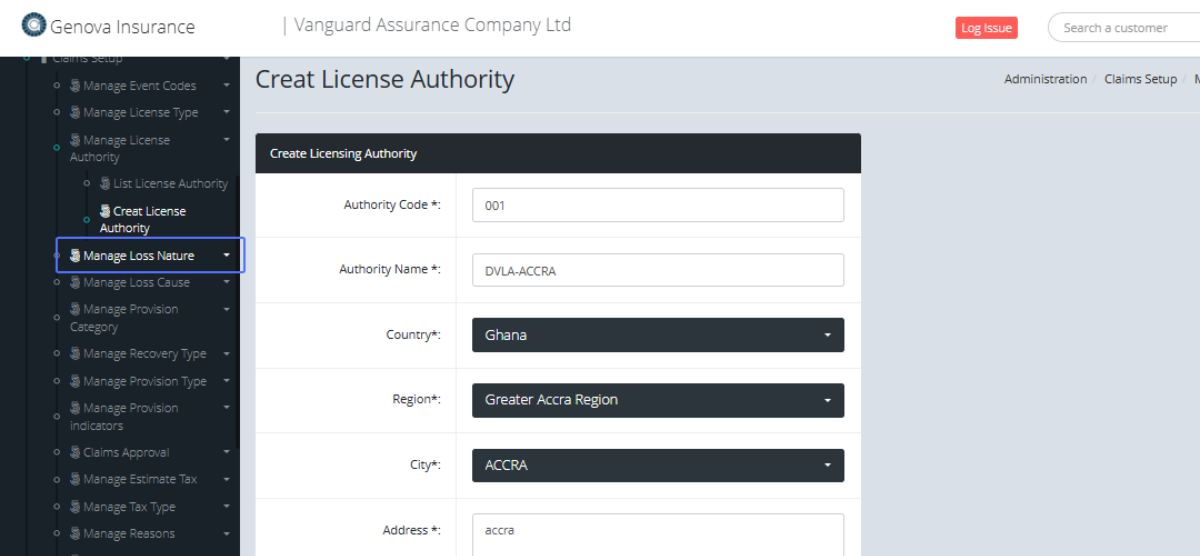
Click on the link "Manage Loss Nature" to see the submenus
Click on the link "Create Loss Nature" got navigate to the Loss Nature Form
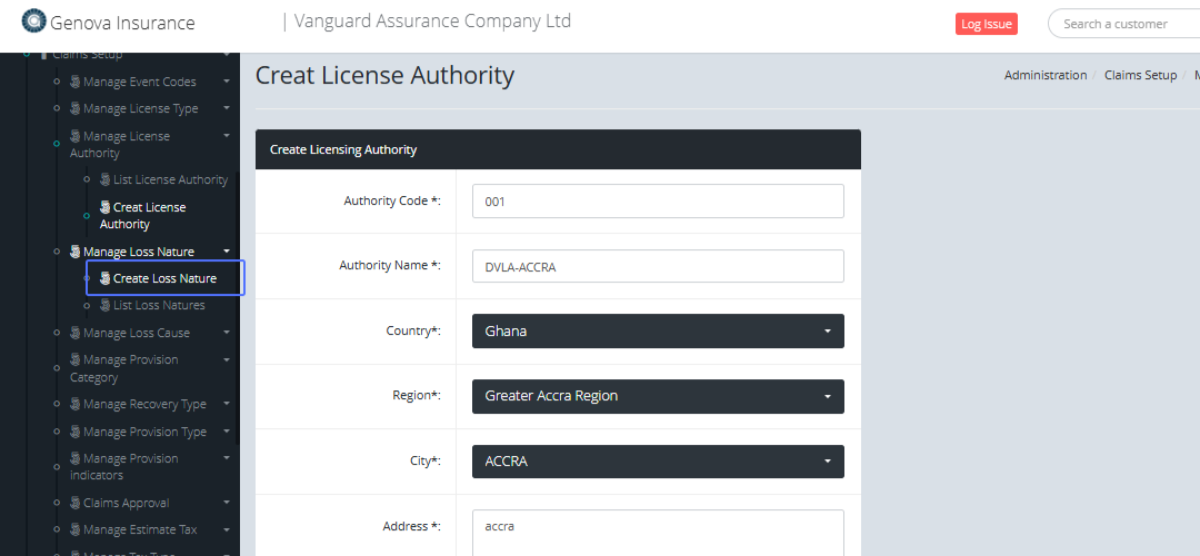
Tab Name: Create Loss Nature - GENOVA INSURANCE
Eter the Loss Code in the provided field
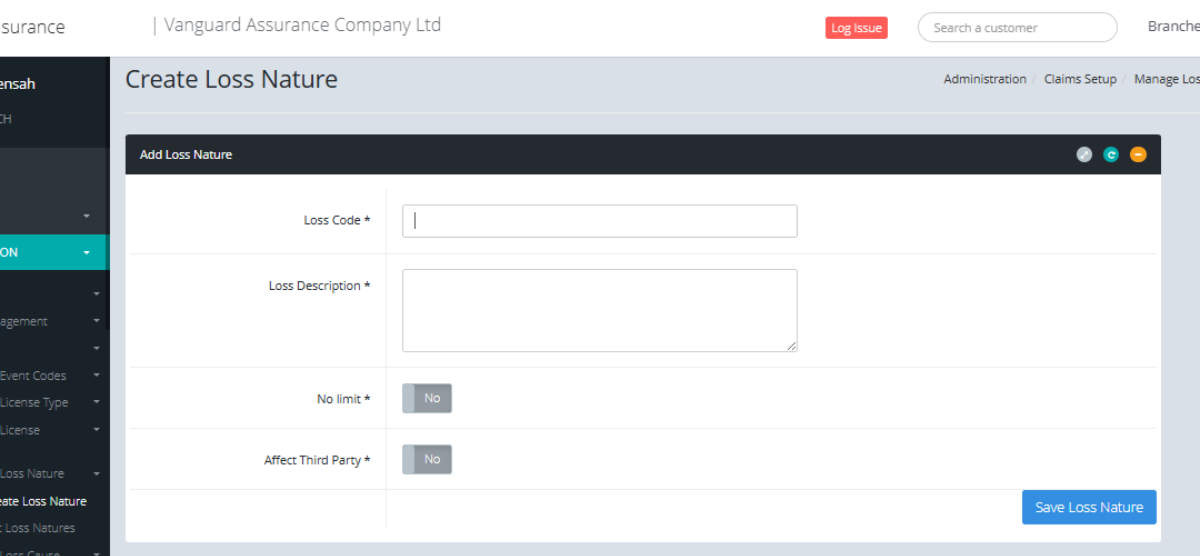
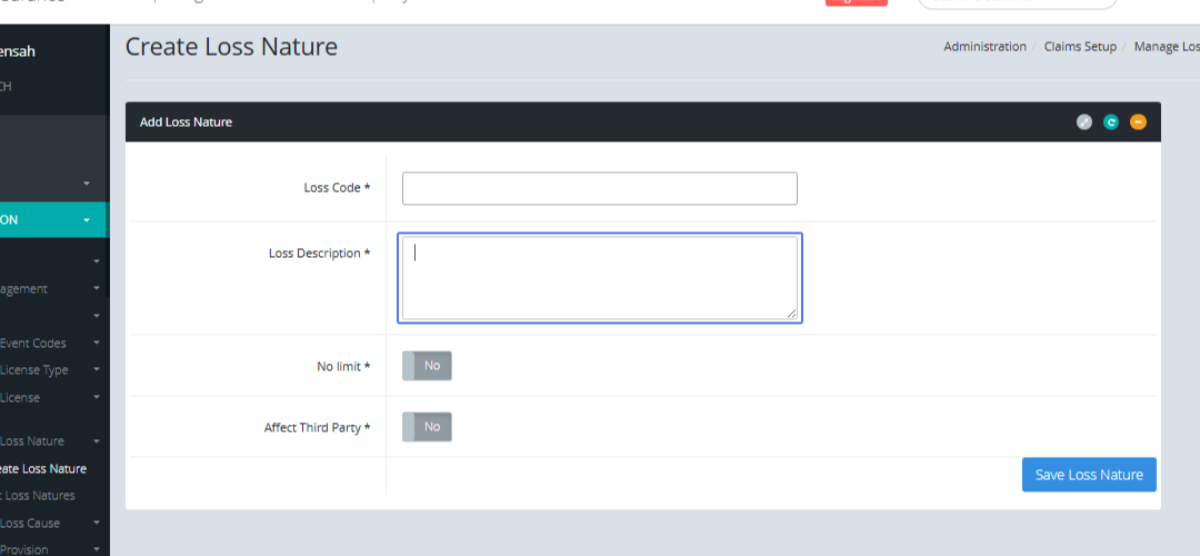
Enter the Loss Description in the provided field
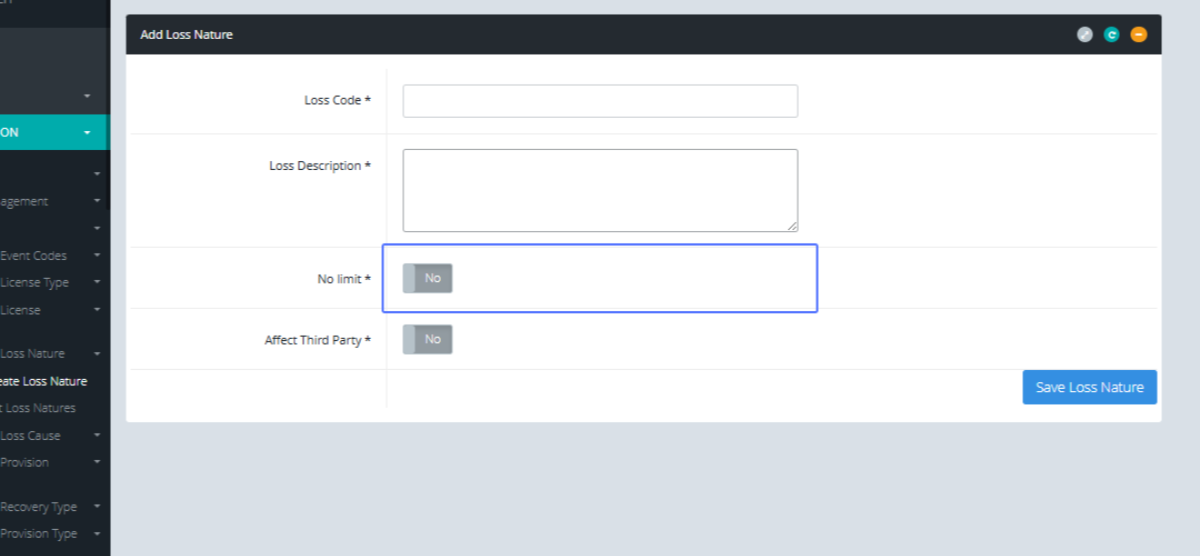
Set the Limit by using the Slider
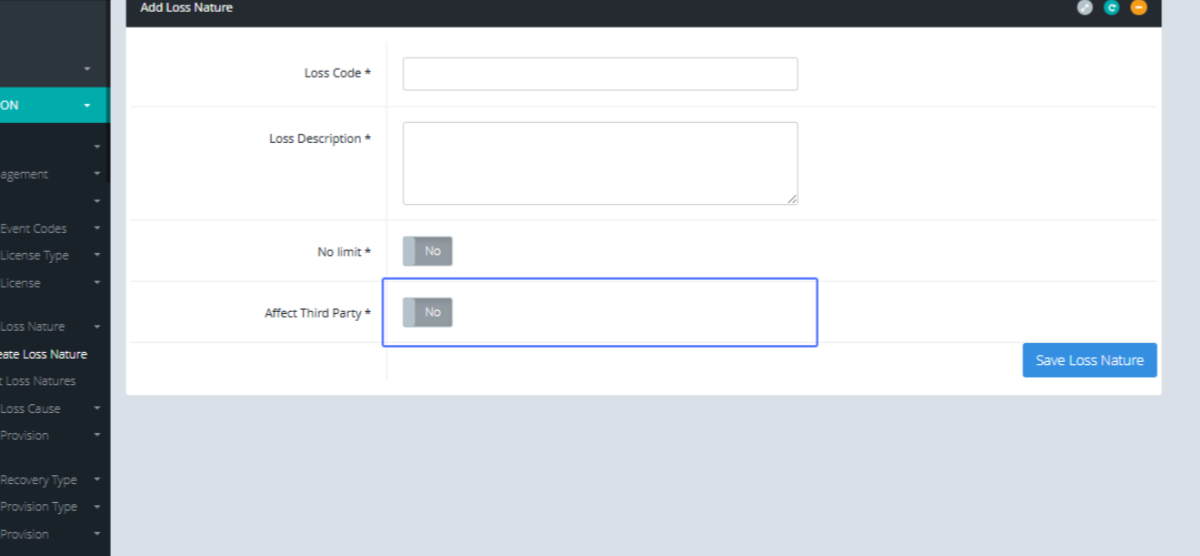
Set the option if the Loss nature should affect third Party by using the slider
Save the loss nature by clicking the “Save Loss Nature” button
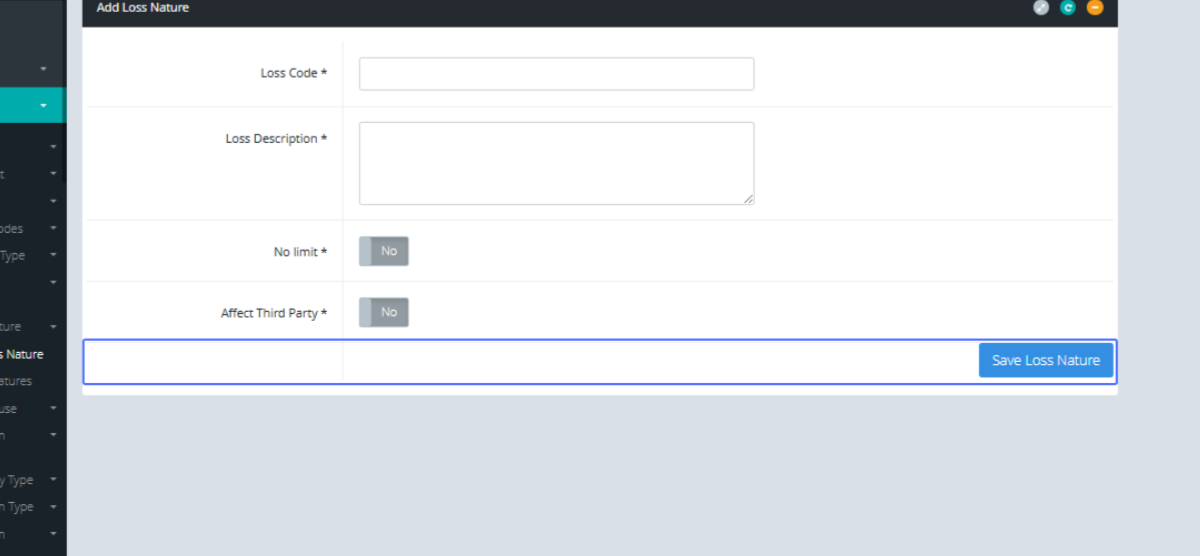
Click on the link "List Loss Natures"
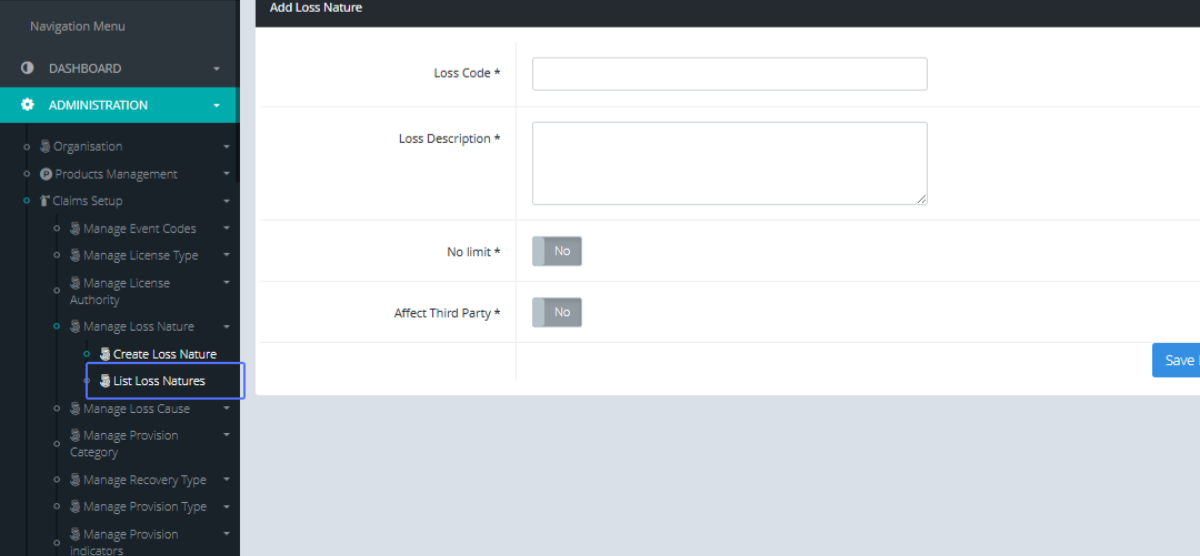
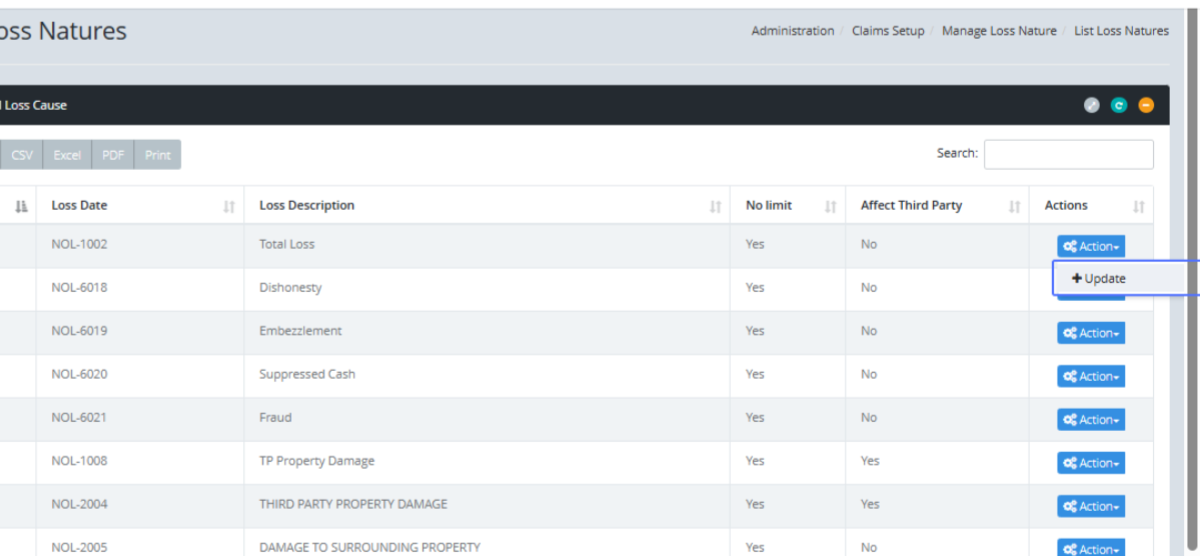
Tab Name: List Loss Natures - GENOVA INSURANCE
Click on the button "Action" to see the available actions for this item

Click on the link "Update" to navigate form of the existing Item
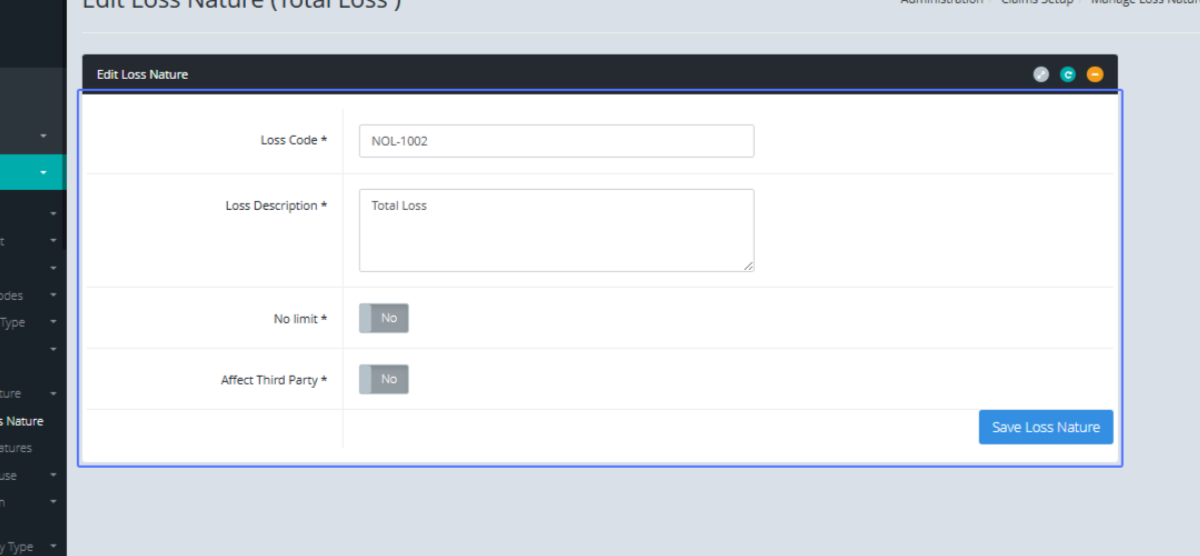
Tab Name: Create Loss Nature - GENOVA INSURANCE
You are provided with the form of the existing Loss nature to perform your updates.
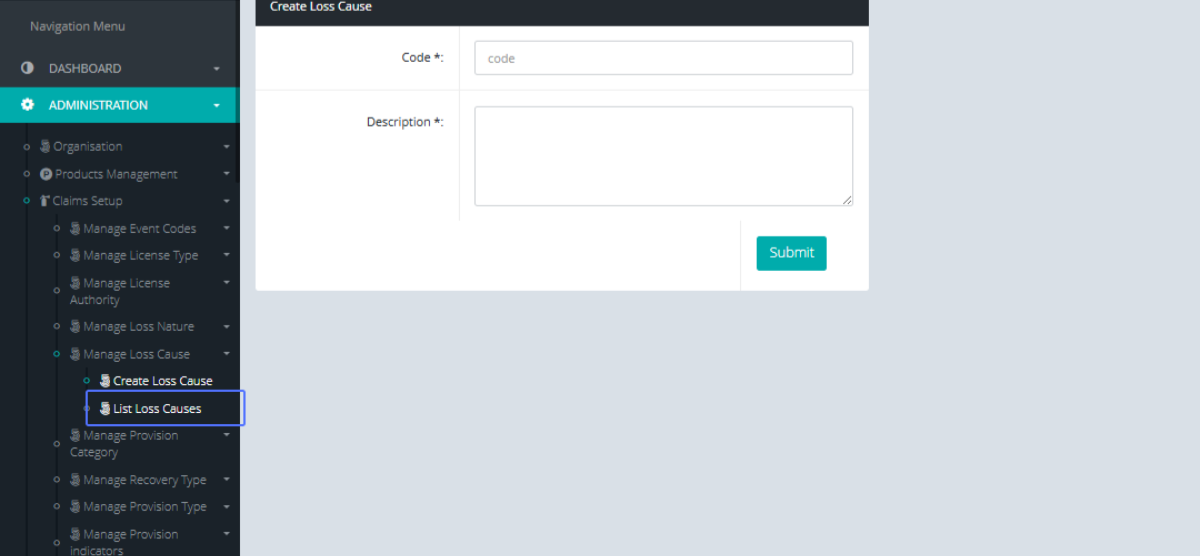
Click on the link "Manage Loss Cause" to view the submenus
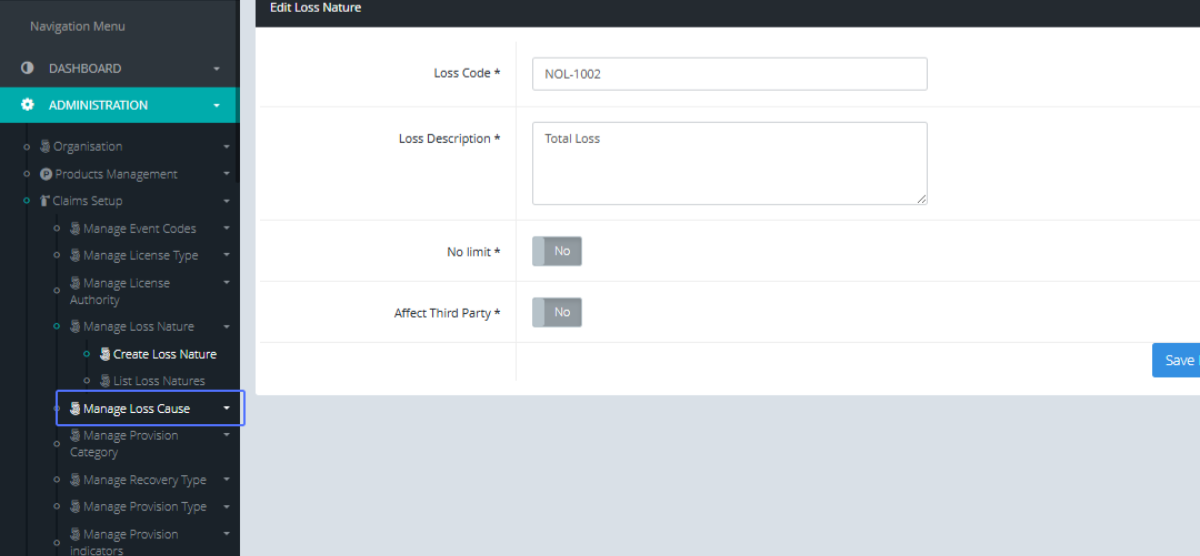
Click on the link "Create Loss Cause"
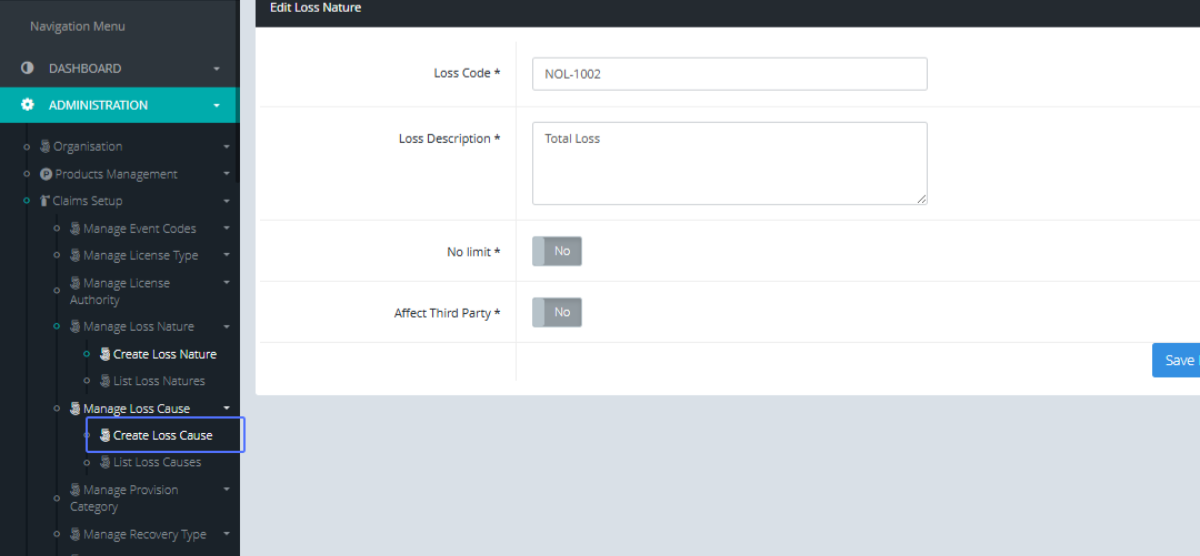
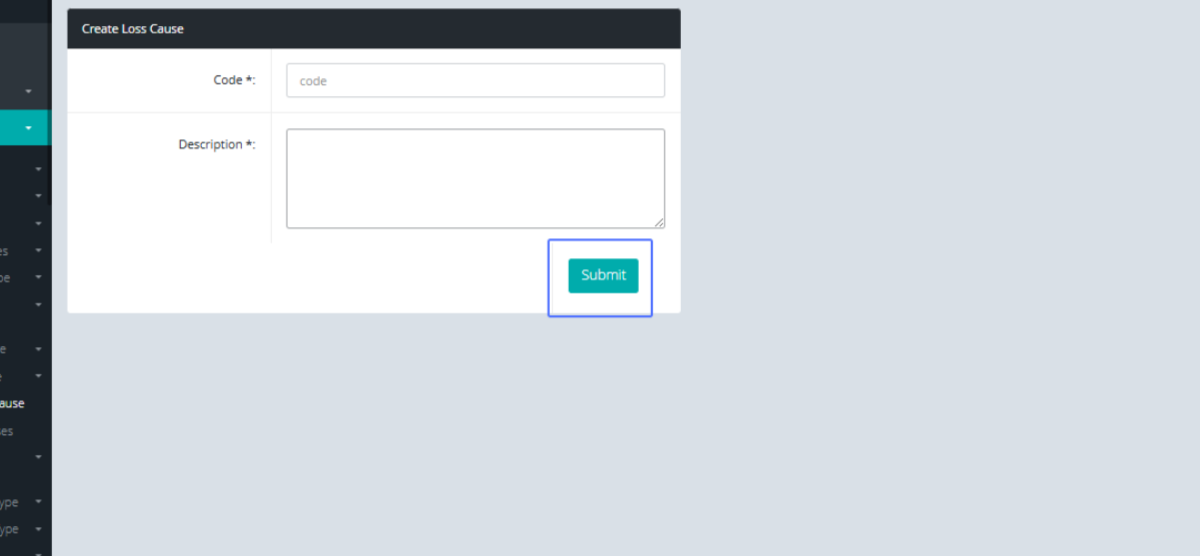
Tab Name: Create Loss Cause - GENOVA INSURANCE
Eter the Code within the provided input field
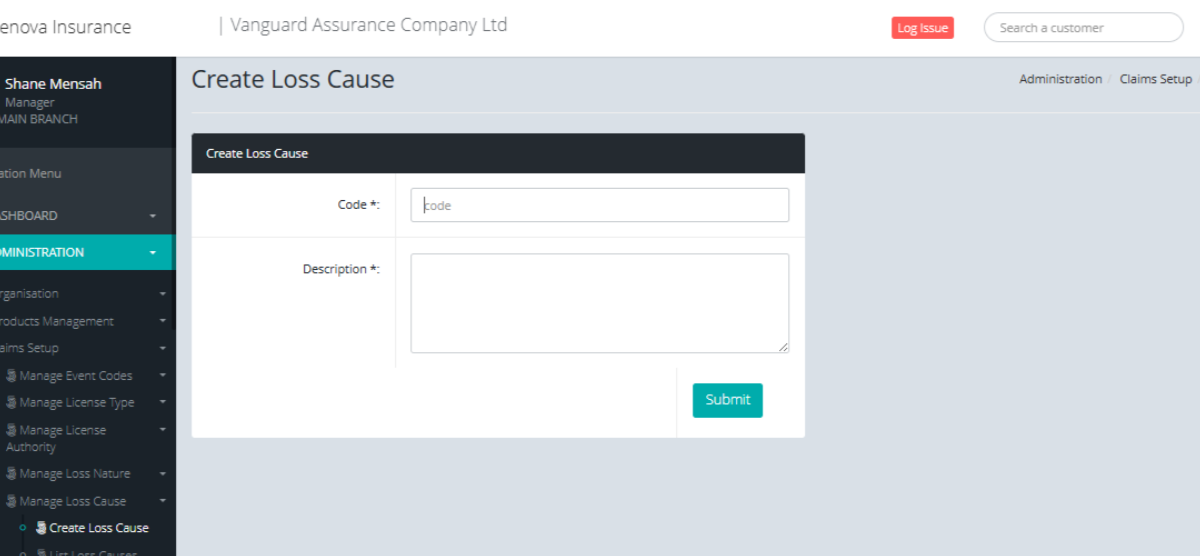
Enter the Description within the provided Input field
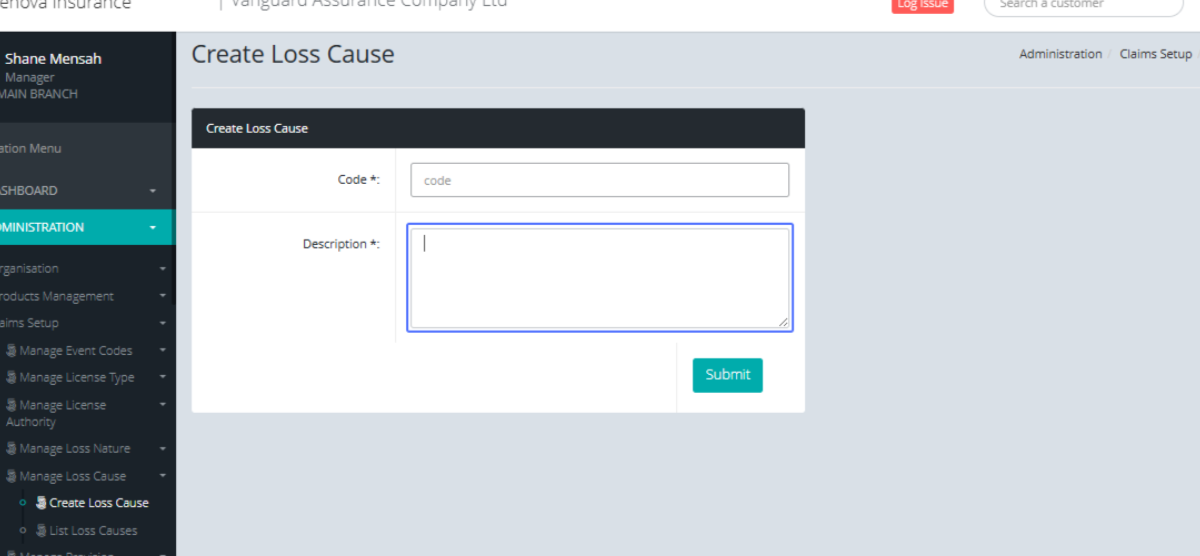
Click on "Submit" to save the loss Cause
Click on the link "List Loss Causes" to show the Loss Cause List
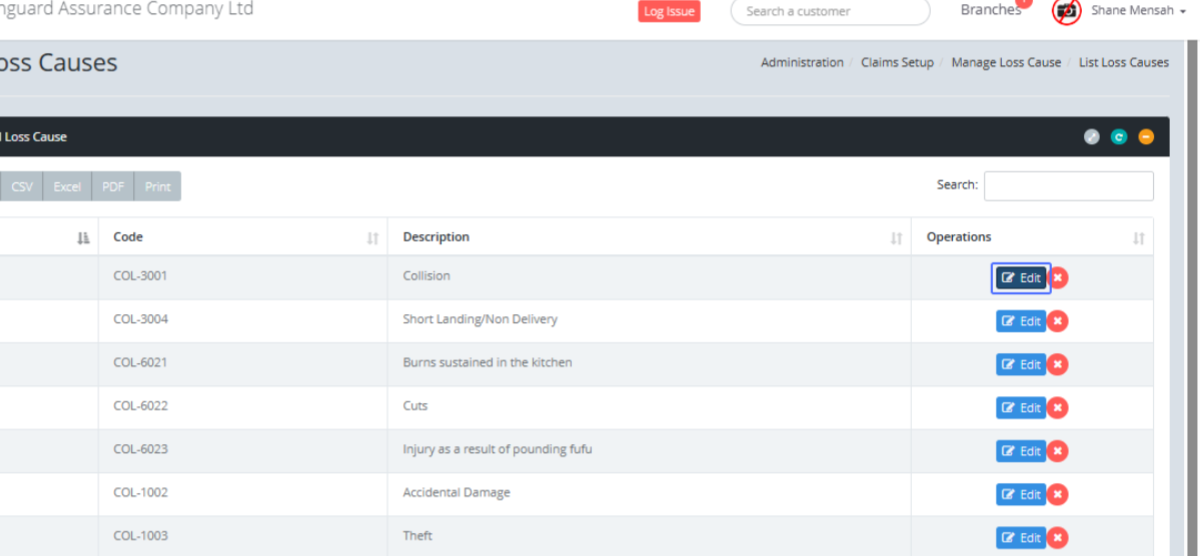
Tab Name: List Loss Causes - GENOVA INSURANCE
Click on the "Edit" button to edit the specific item.
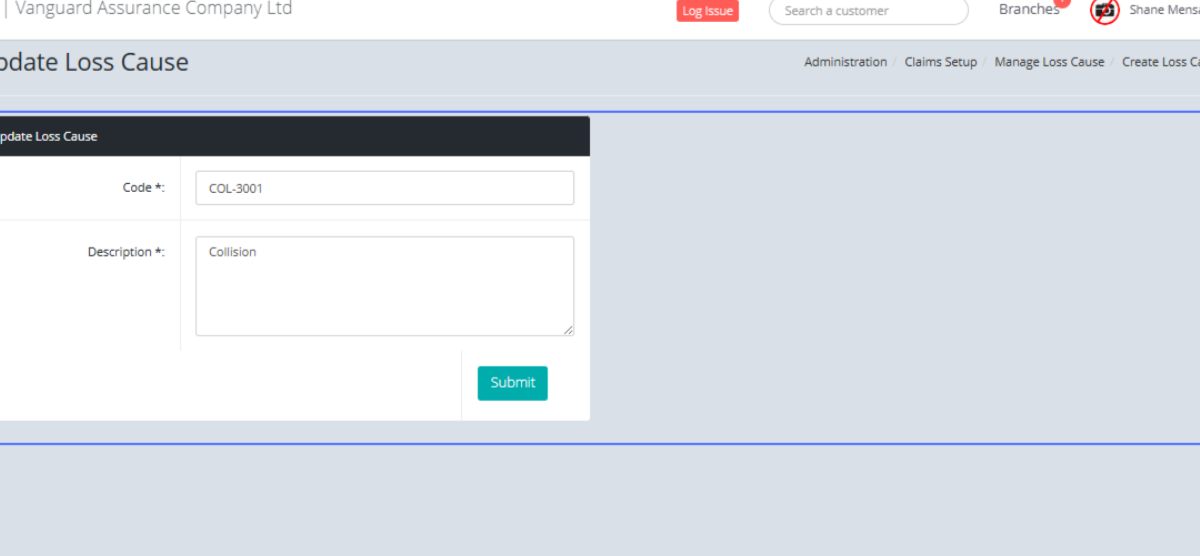
Tab Name: Create Loss Cause - GENOVA INSURANCE
You will be presented with the existing item form to make the changes on
Click on the link "Manage Provision Category" to view the submenus
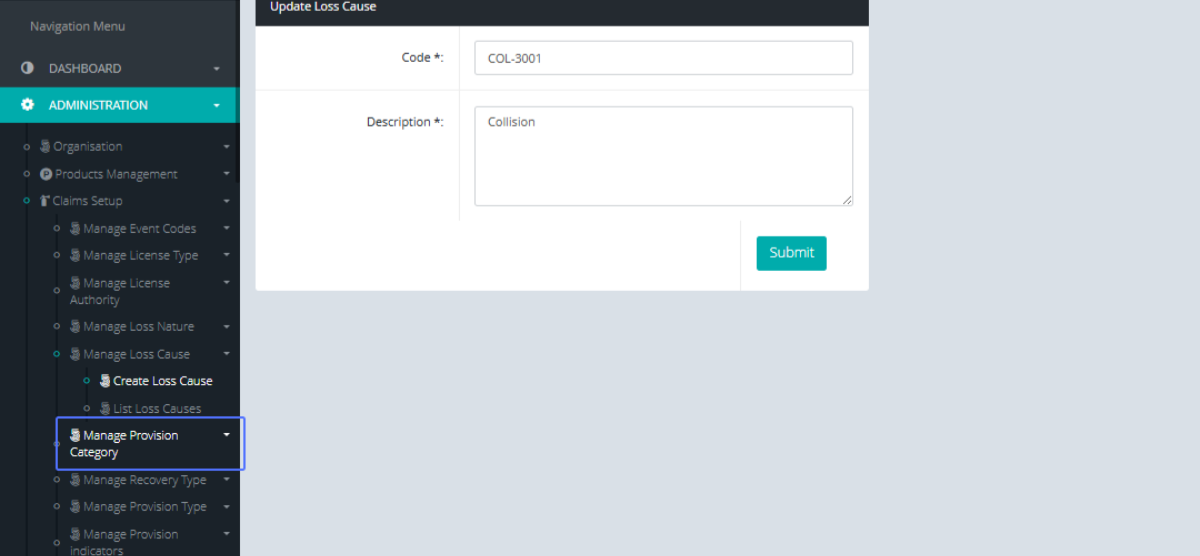
Click on the link "Create Provision Category" to navigate to the Provision Category form
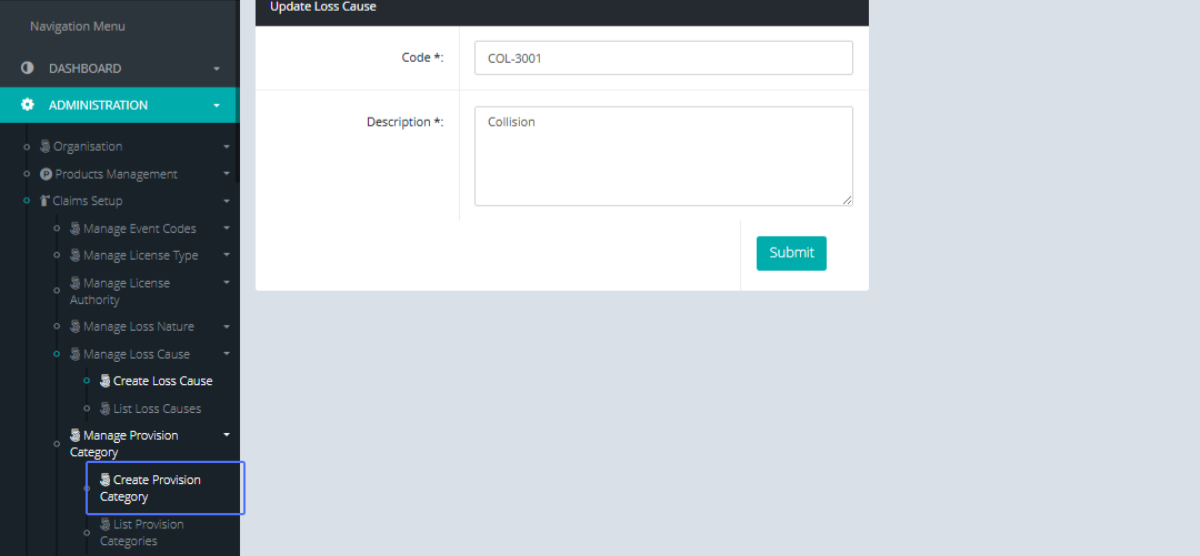
Tab Name: Create Provision Category - GENOVA INSURANCE
Enter the name into the provided input field

Enter the description into the provided input field
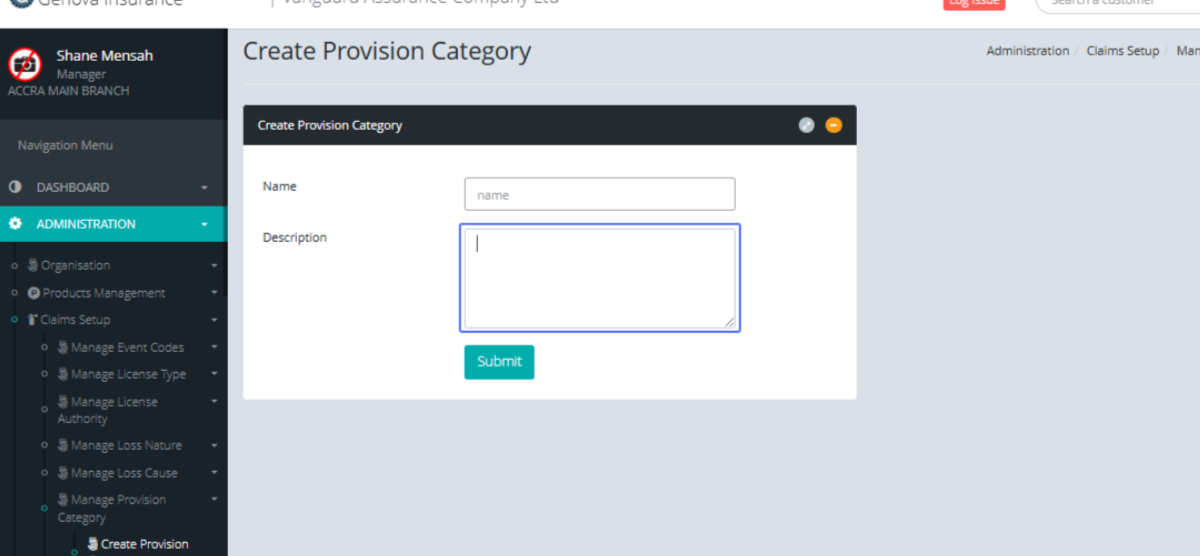
Click on "Submit" to save the Provision Category

Click on the link "List Provision Categories" to view the provision Category list
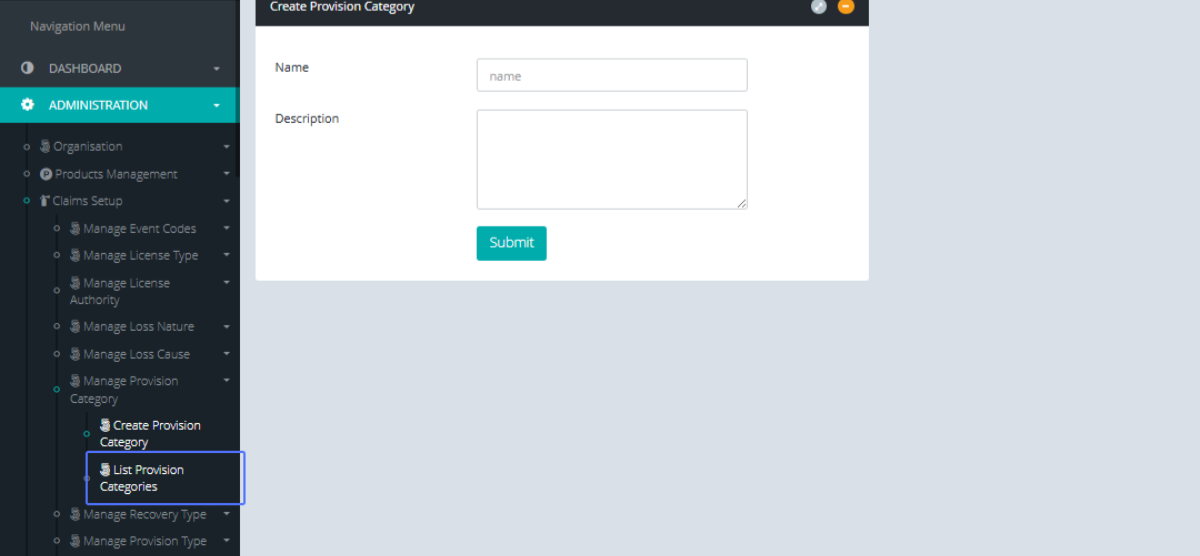
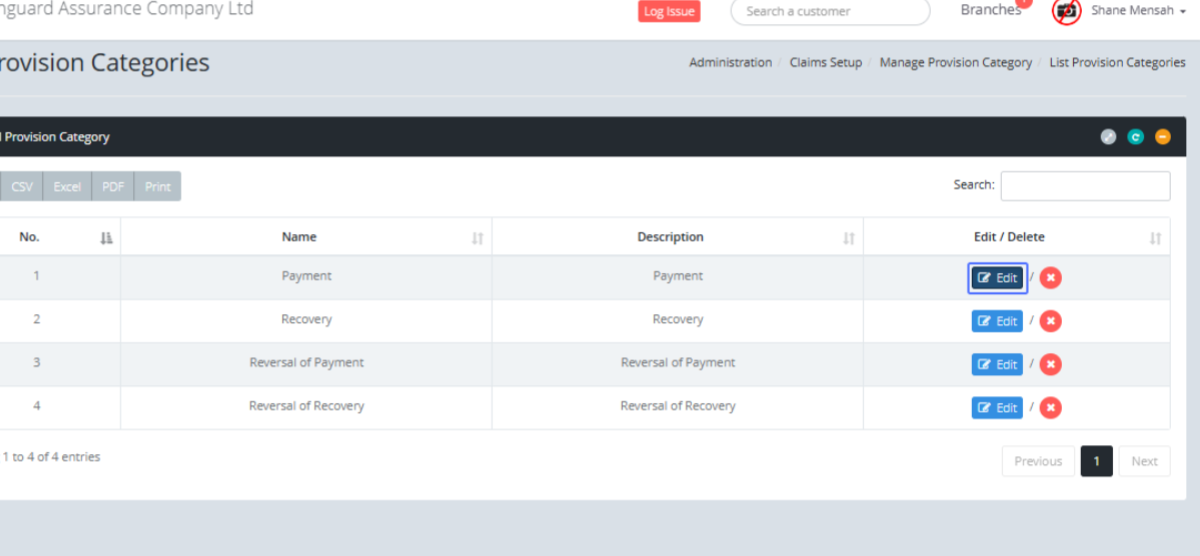
Tab Name: List Provision Categories - GENOVA INSURANCE
Click on the "Edit" button to edit the selected item
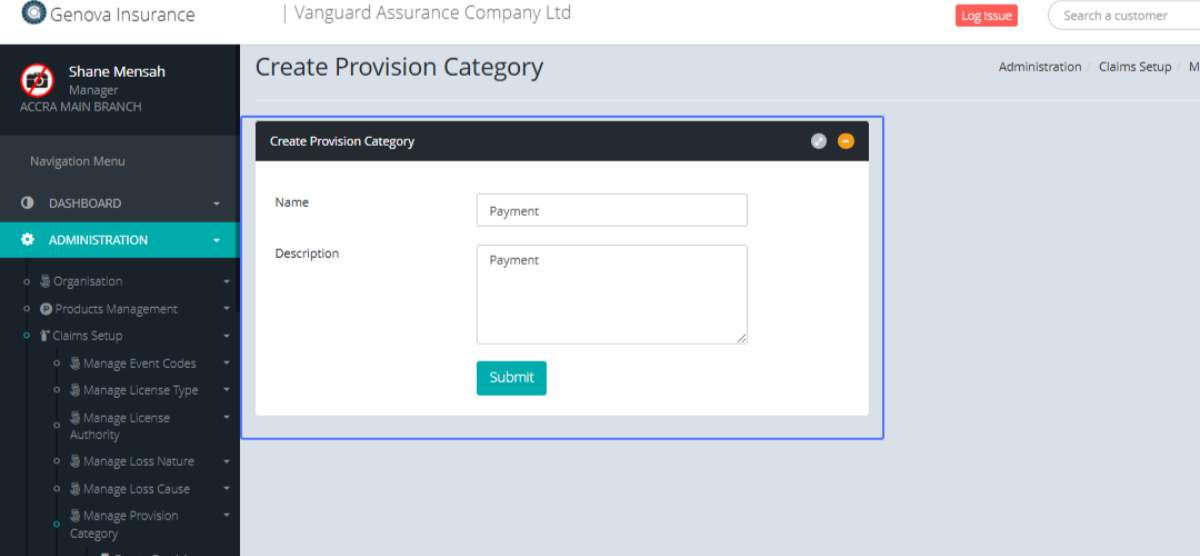
Tab Name: Create Provision Category - GENOVA INSURANCE
You will be presented with the existing Provision Category from to perform your edits
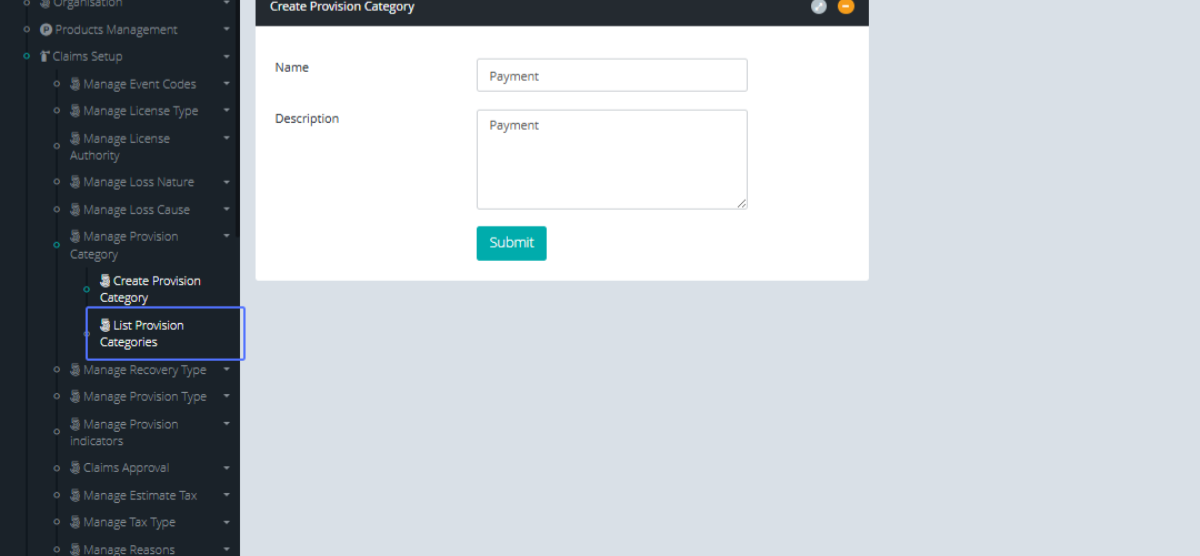
Click on the link "List Provision Categories" to navigate to the Provision Categories List
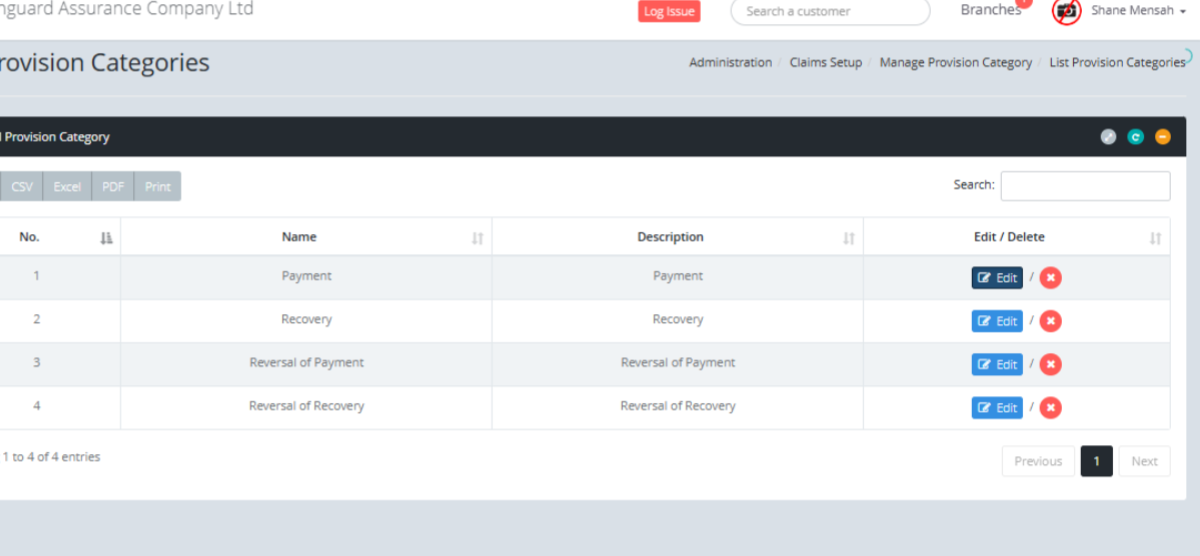
Tab Name: List Provision Categories - GENOVA INSURANCE
Click on the "Edit" button to edit the specific resource
Tab Name: Create Provision Category - GENOVA INSURANCE
You will be presented with the Existing provision Category Form for the selected resource
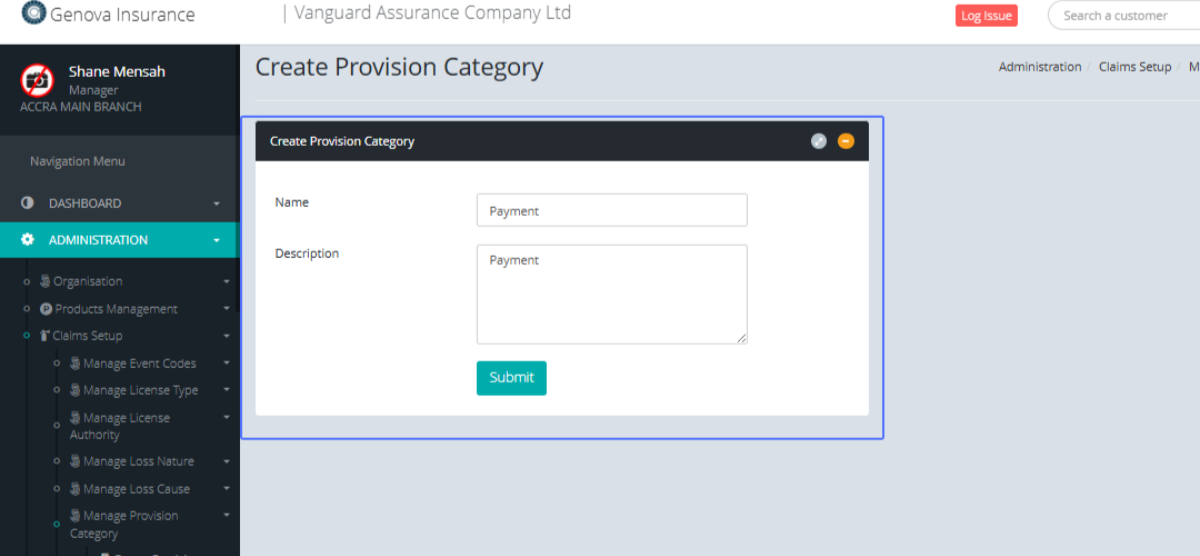
Click on the link "Manage Recovery Type" to the view the submenus
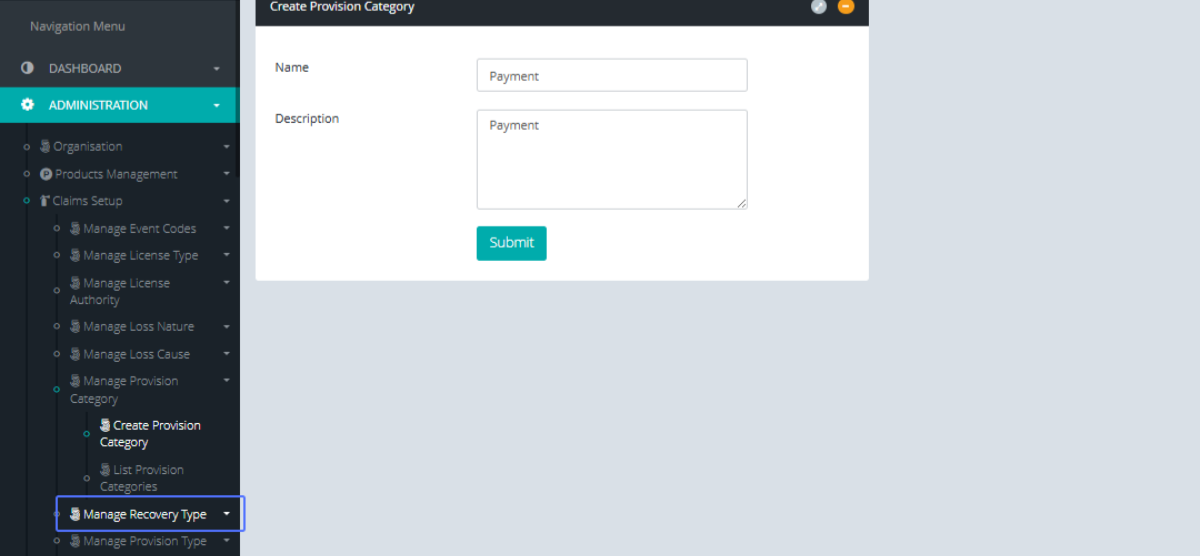
Click on the link "Create Recovery Type" to navigate to the Create Recovery Type form
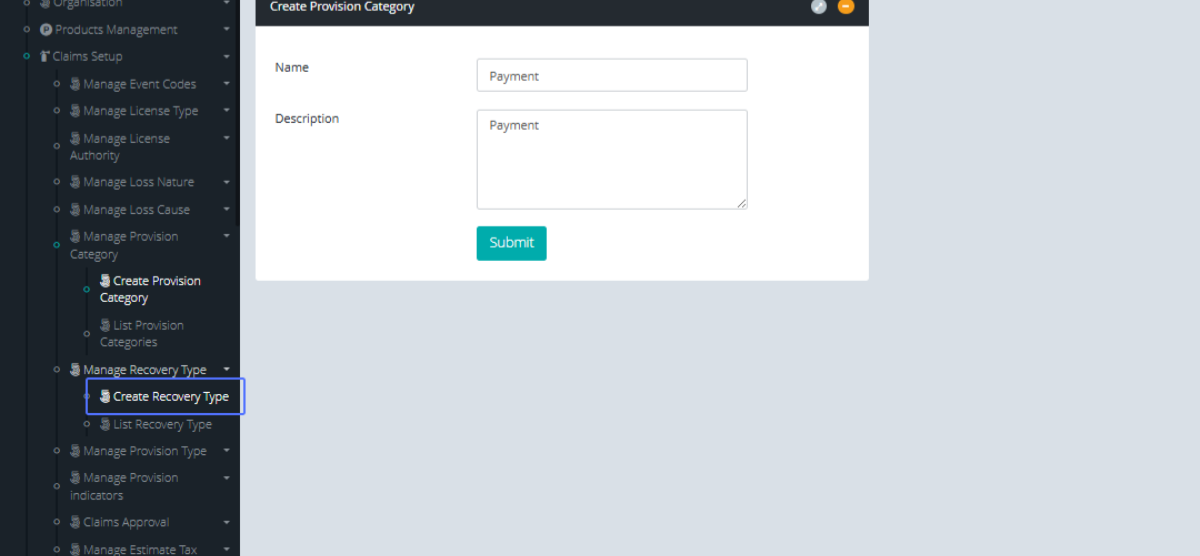
Tab Name: Create Recovery Type - GENOVA INSURANCE
Enter the code into the provided input field
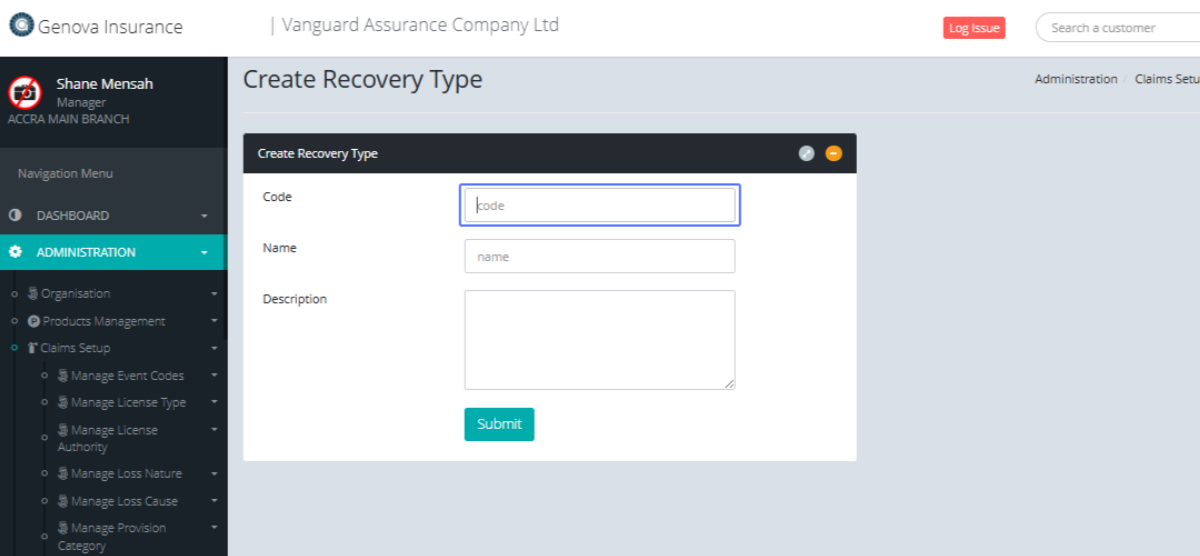
Enter the name into the provided input field
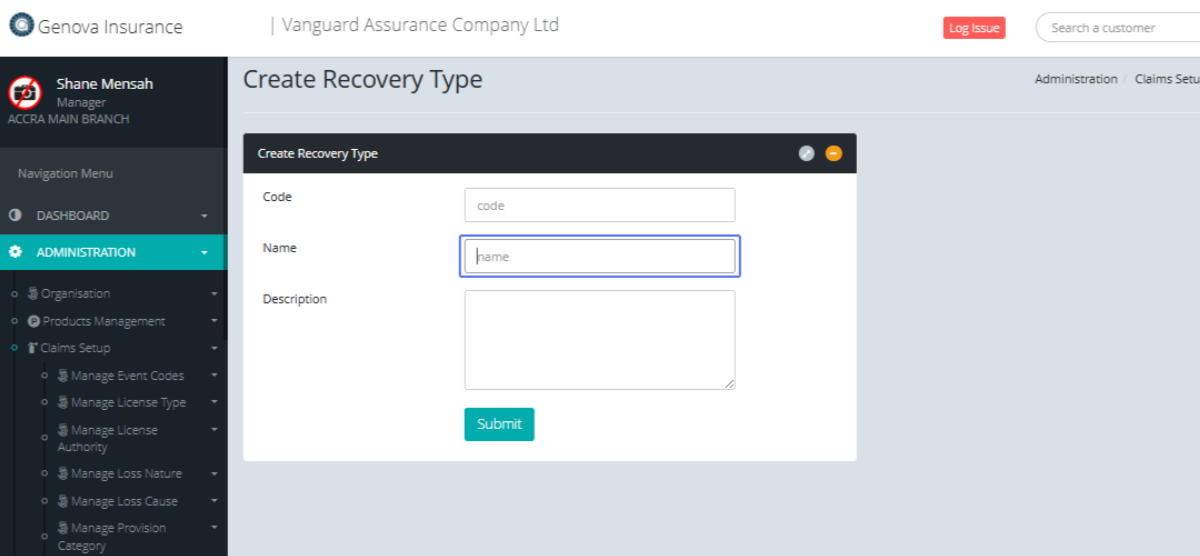
Enter the description into the provided input field
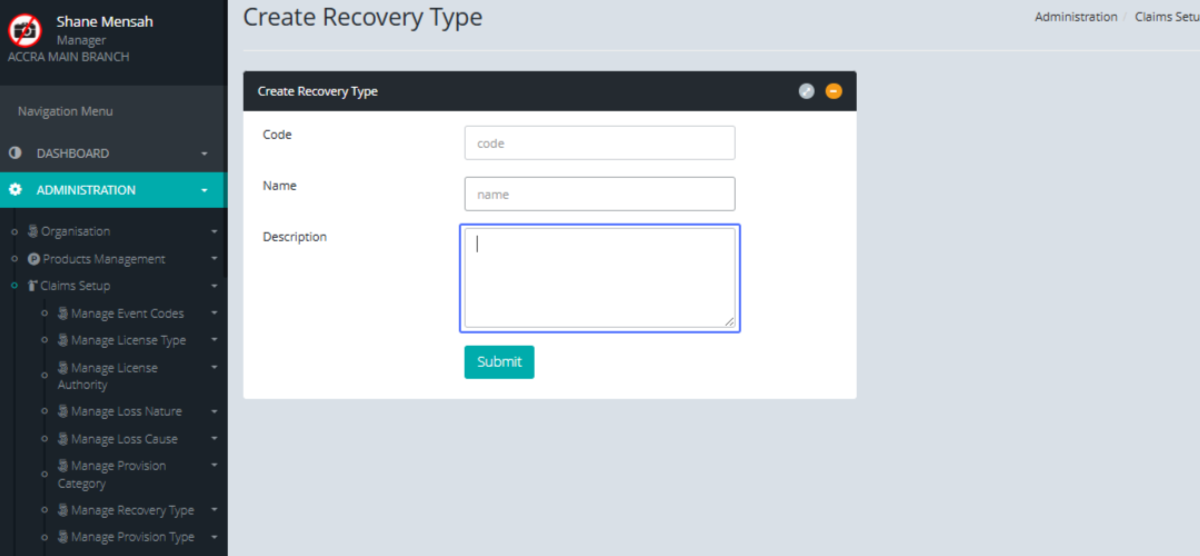
Click on "Submit" to save the Recovery Type
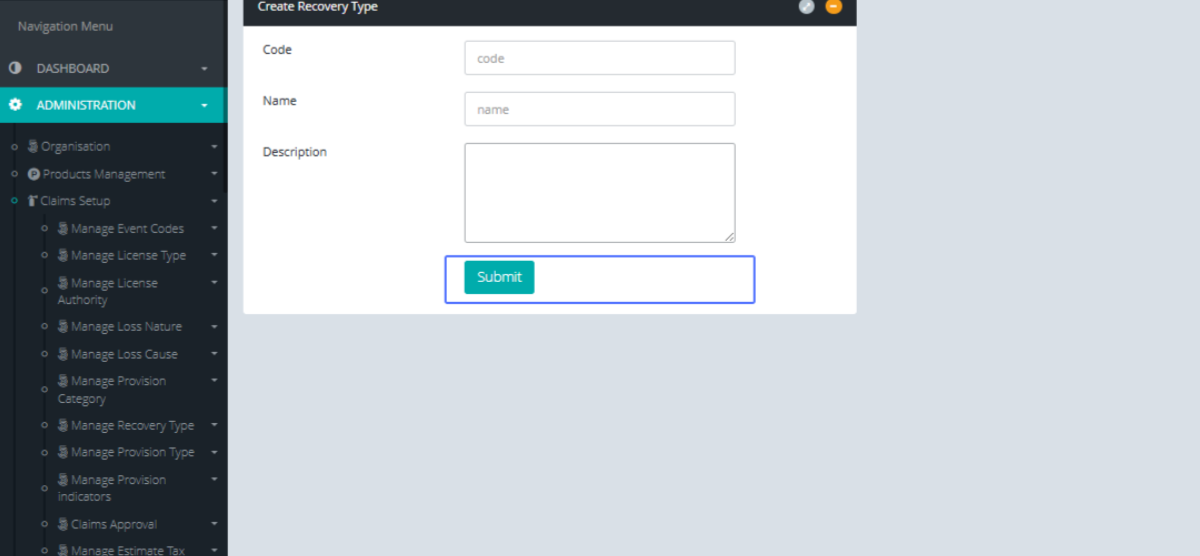
Click on the link "Manage Recovery Type" to see the available submenus

Click on the link "List Recovery Type" to see the recovery type list
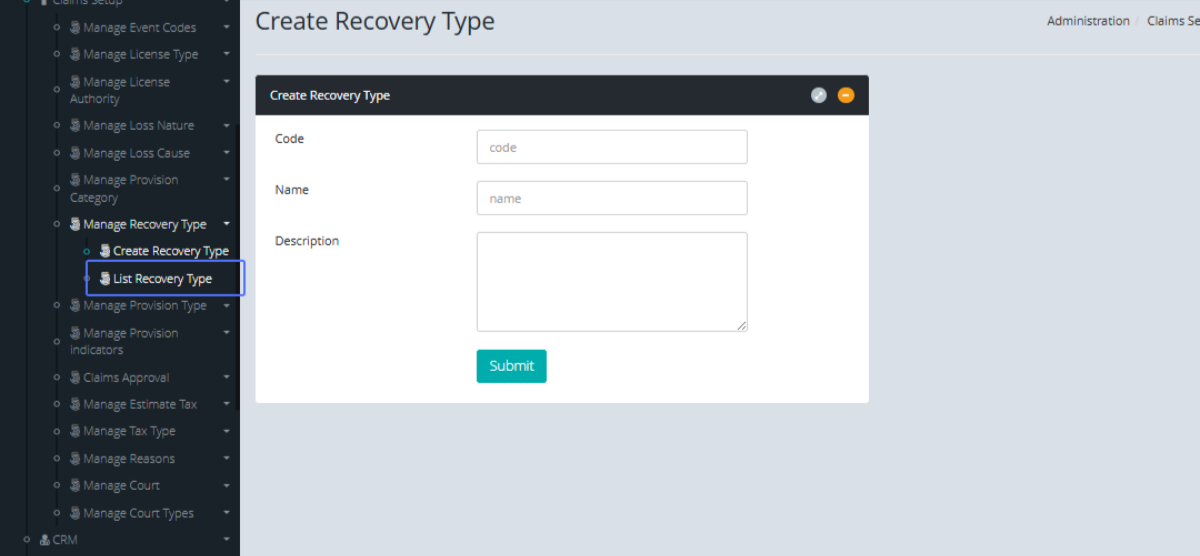
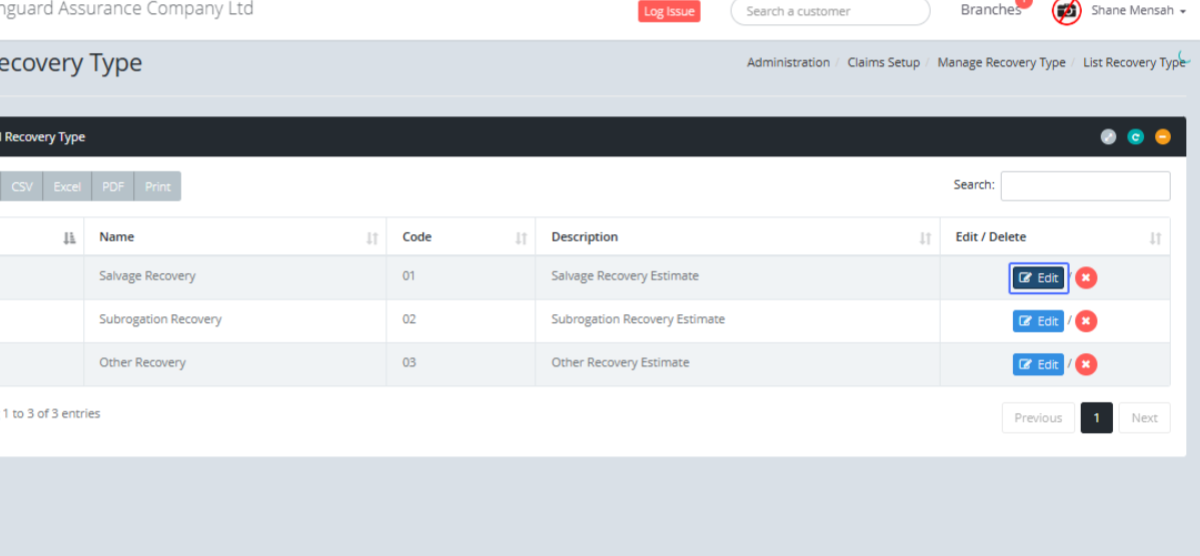
Tab Name: List Recovery Type - GENOVA INSURANCE
Click on the "Edit" button to edit the selected resource
Tab Name: Create Recovery Type - GENOVA INSURANCE
You will be presented with the existing Recovery type form to perform the edits.
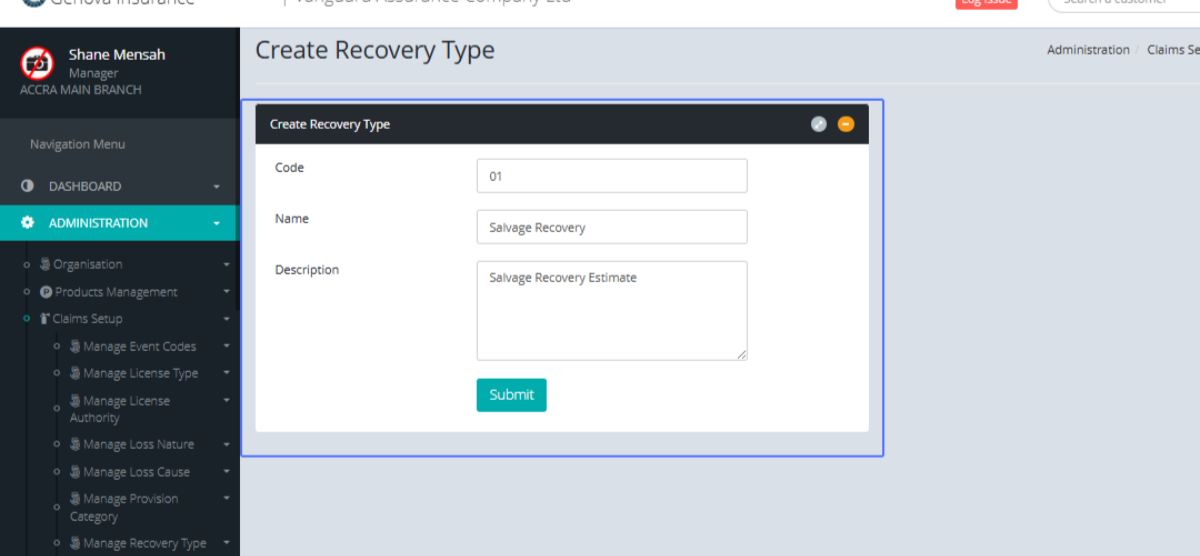
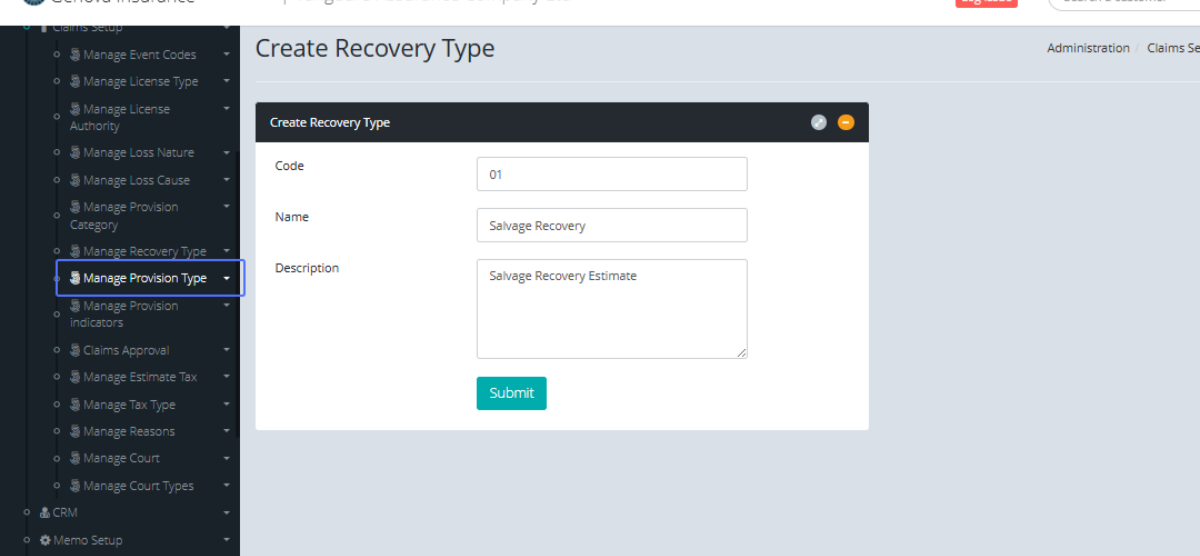
Click on the link "Manage Provision Type" to see the submenu
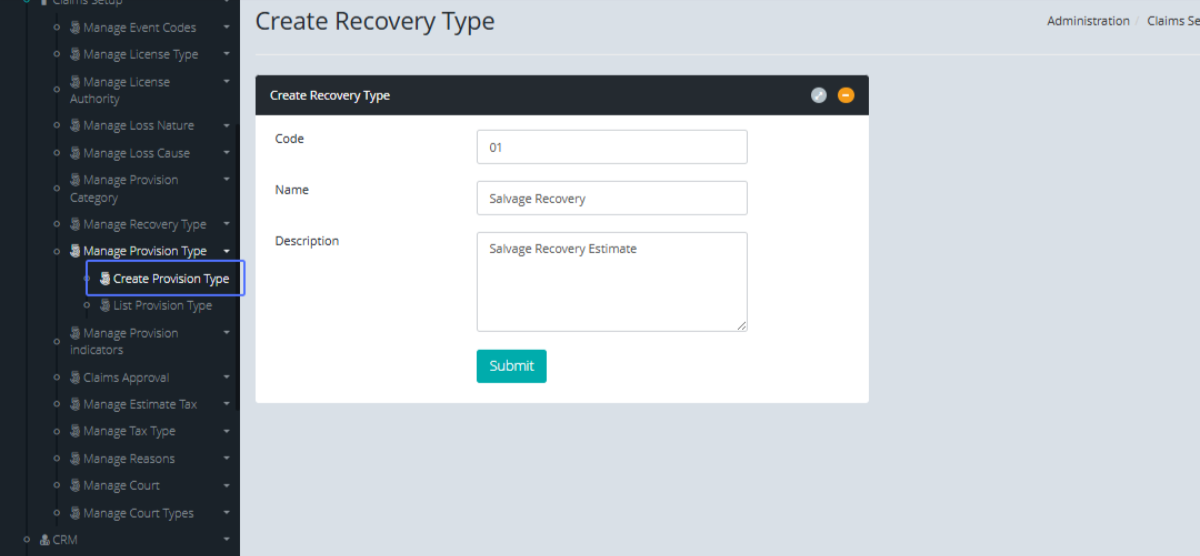
Click on the link "Create Provision Type" to navigate to the Provision Type form
Tab Name: Create Provision Type - GENOVA INSURANCE
Enter the name within the provided input
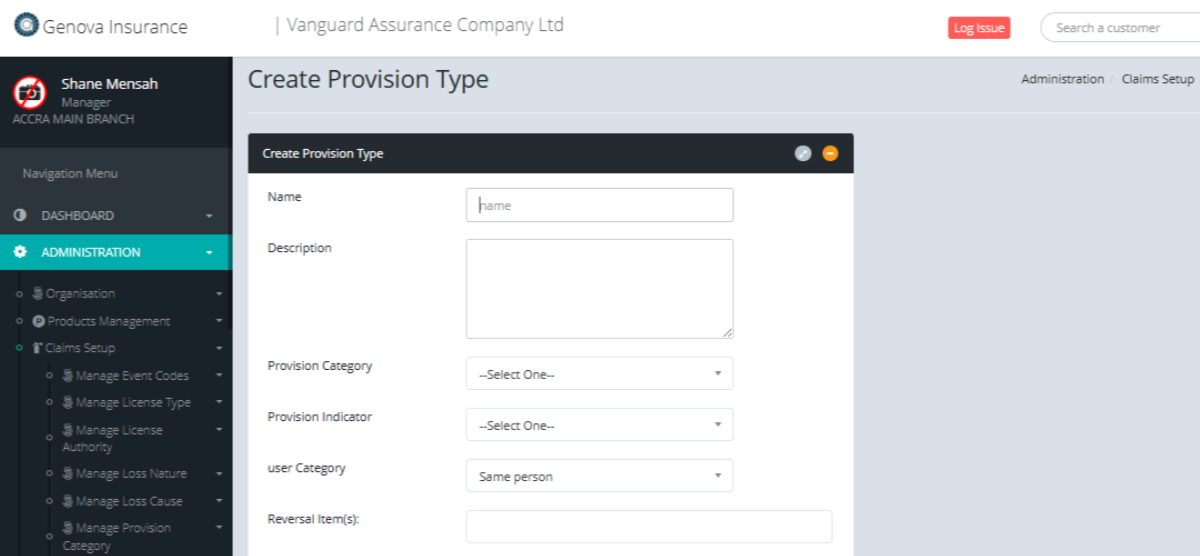
Enter the description within the provided input
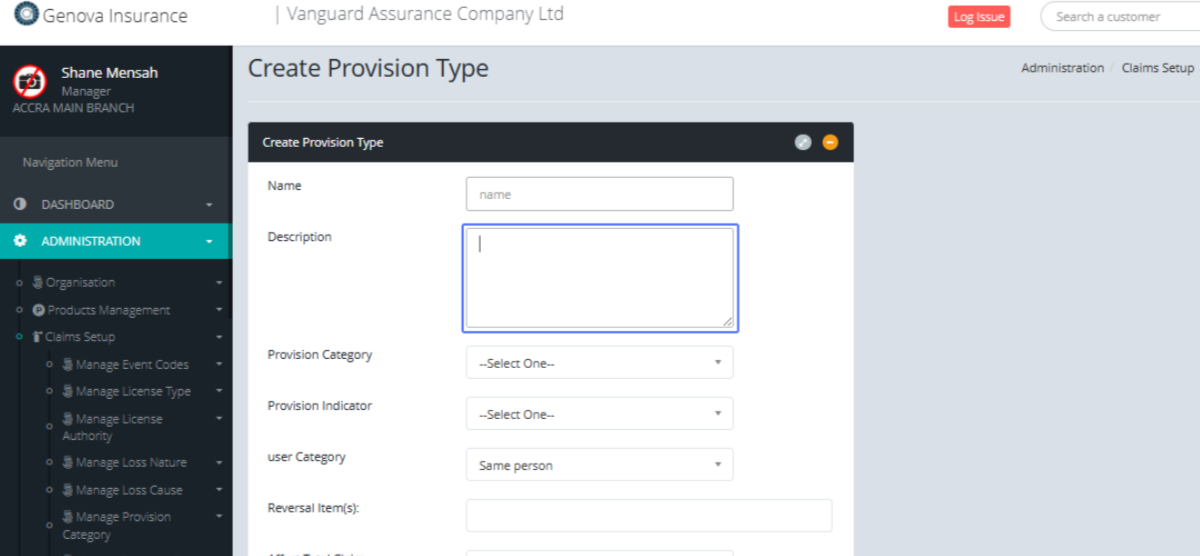
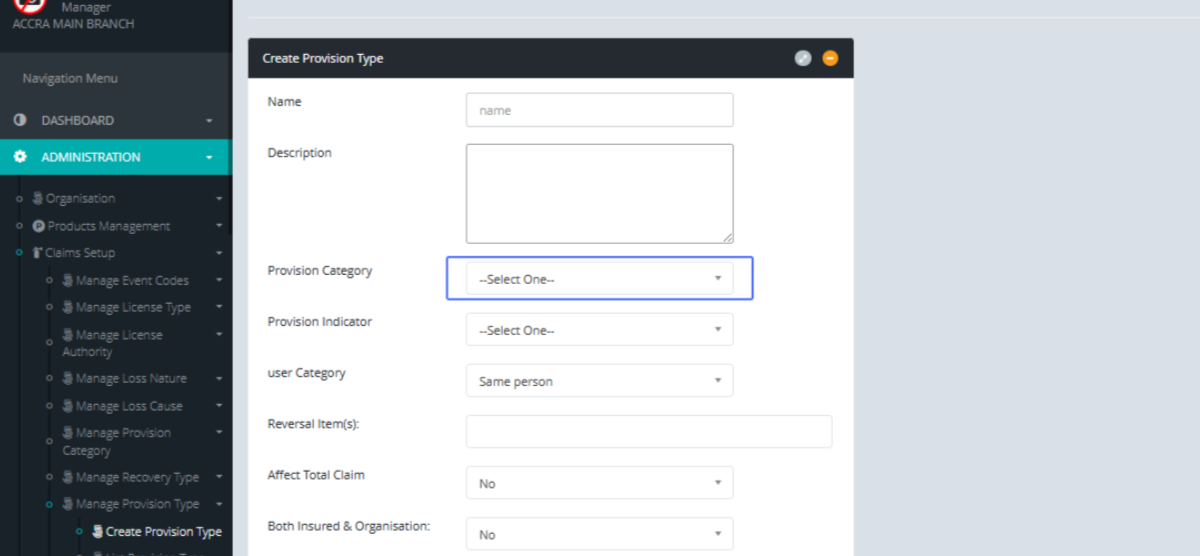
Select the provision category from the provided Dropdown list
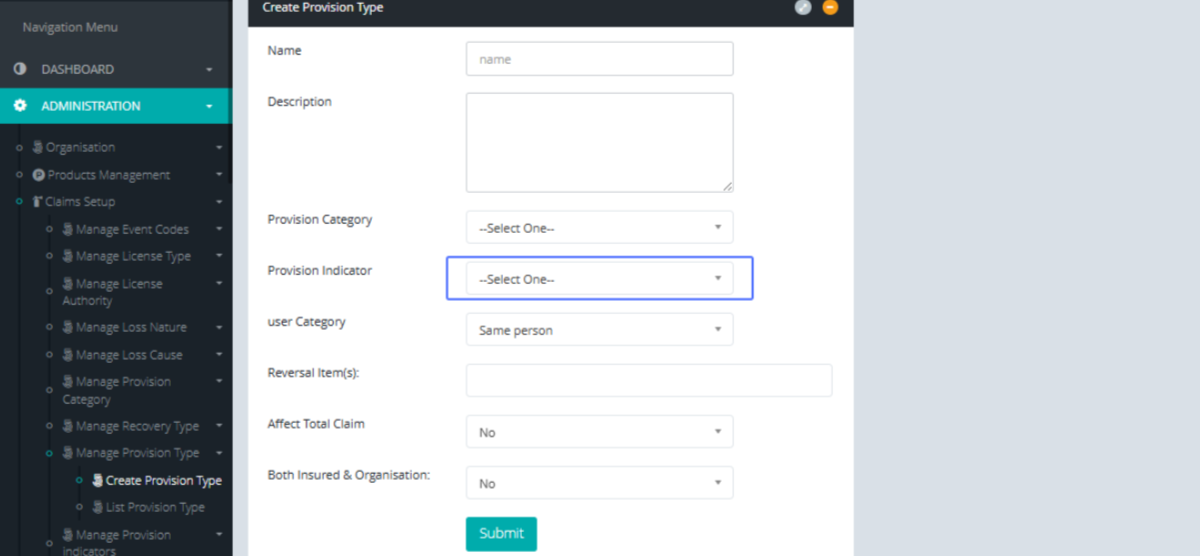
Select the Provision Indicator from the selected dropdown list
Select the User Category from the provided dropdown
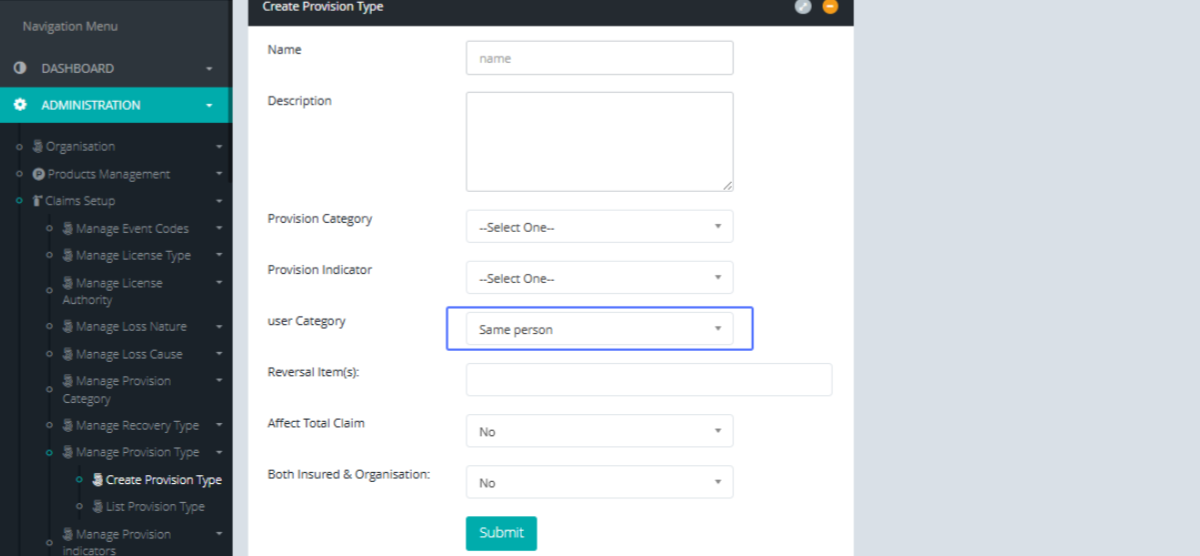
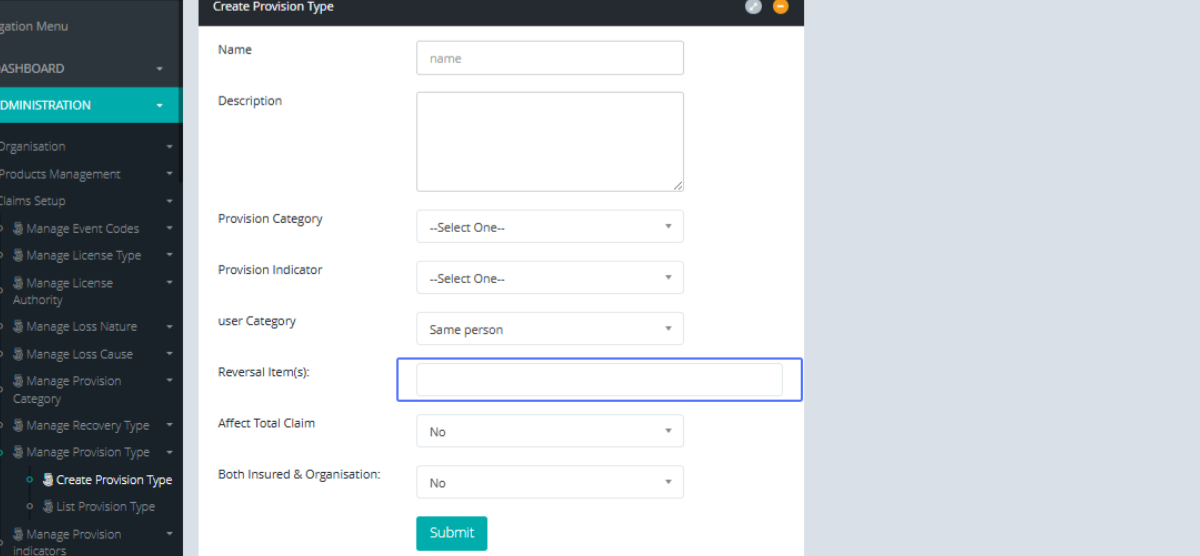
Enter the Appropriate Reversal Items
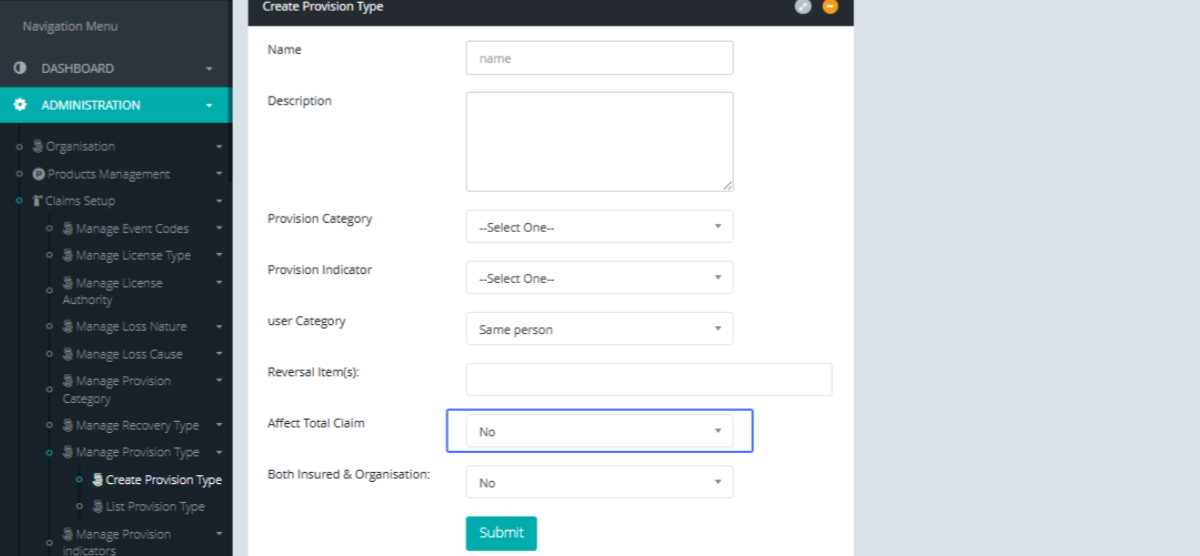
Select the Total Claim Options from the available dropdown
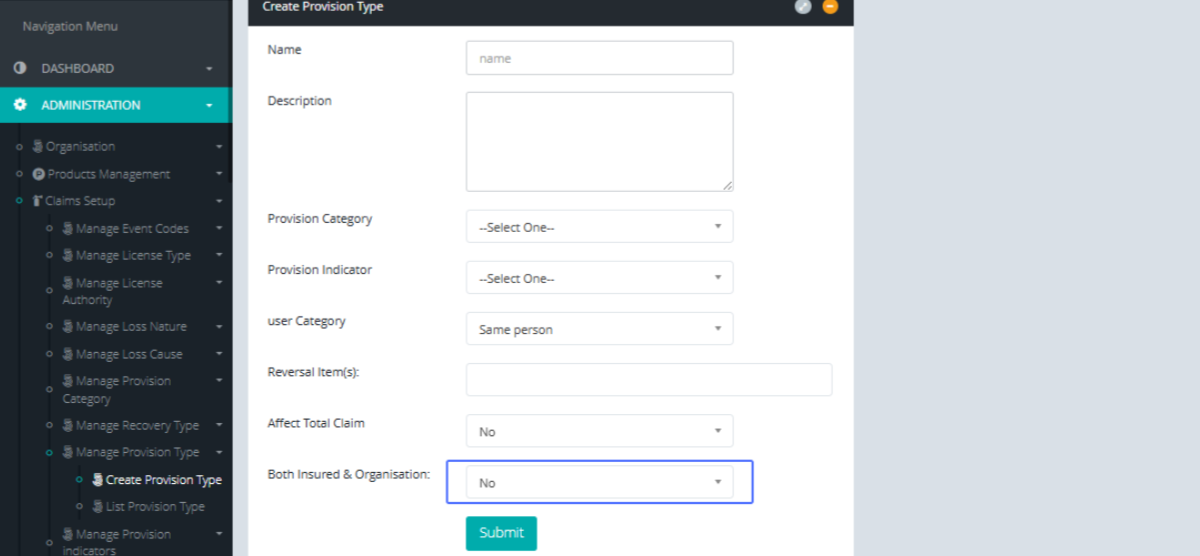
Select Both Insured and Organization from the available dropdown
Click on "Submit" to save the form

Click on the link "List Provision Type" to see the provision type list
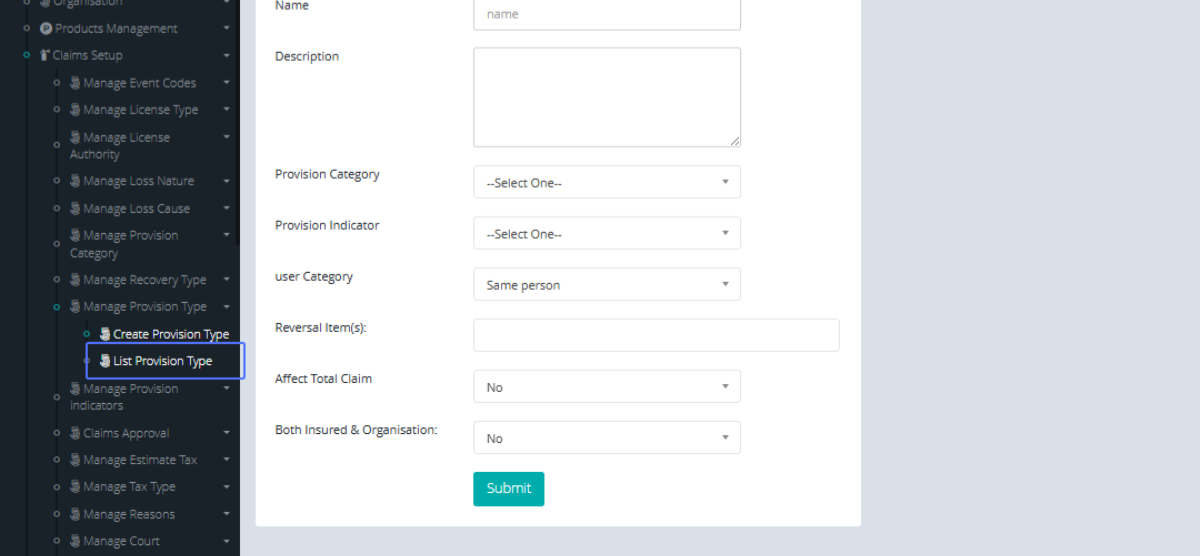
Tab Name: List Provision Type - GENOVA INSURANCE
Click on the "Action" button to view available actions
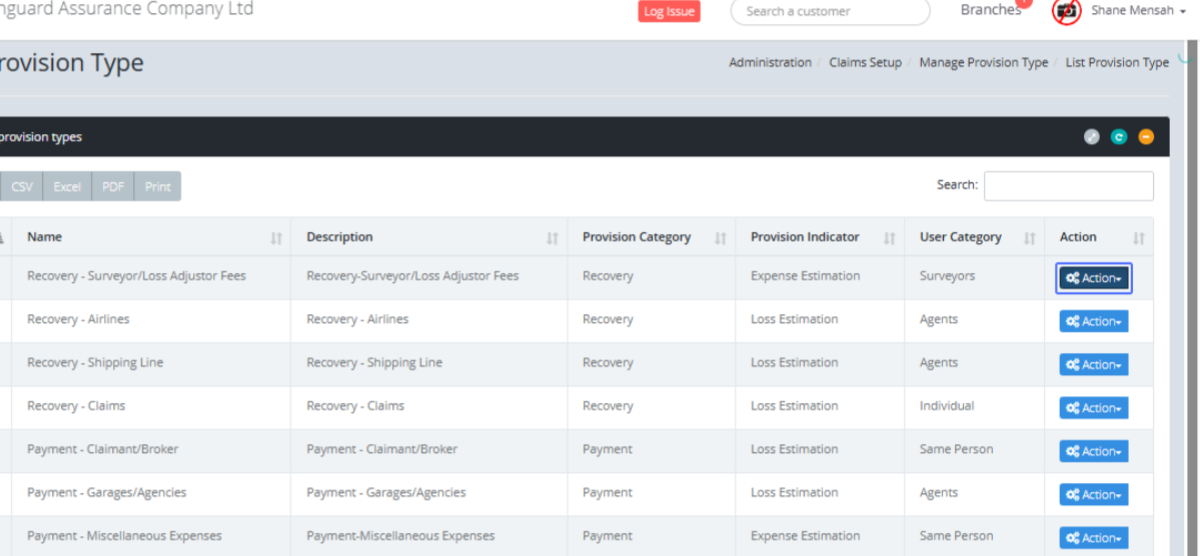
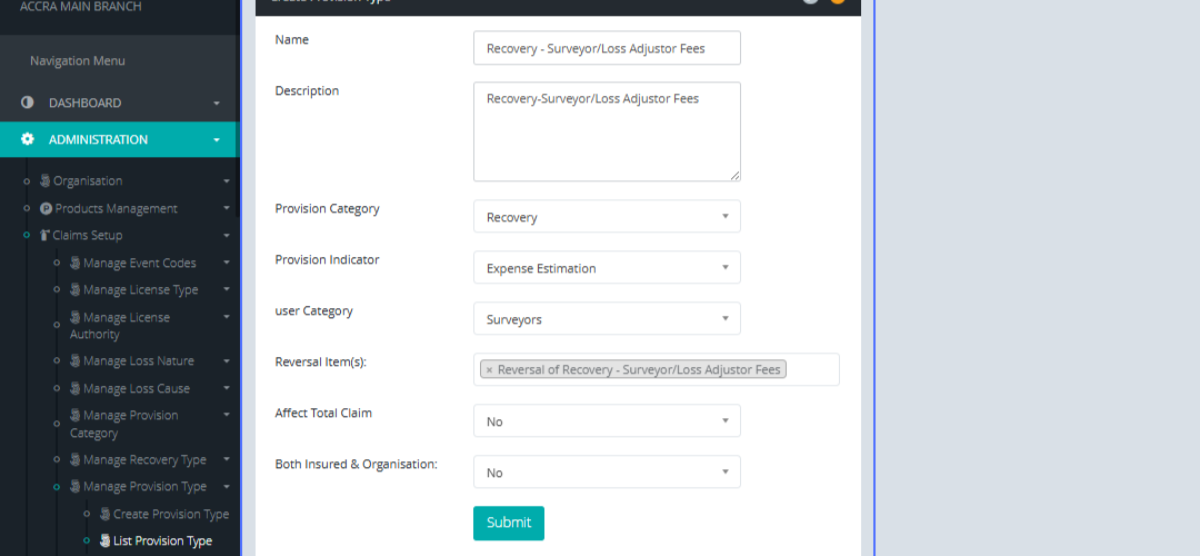
Click on the link "Update" to navigate to the update from of the specified resource

You can then make changes to the existing from
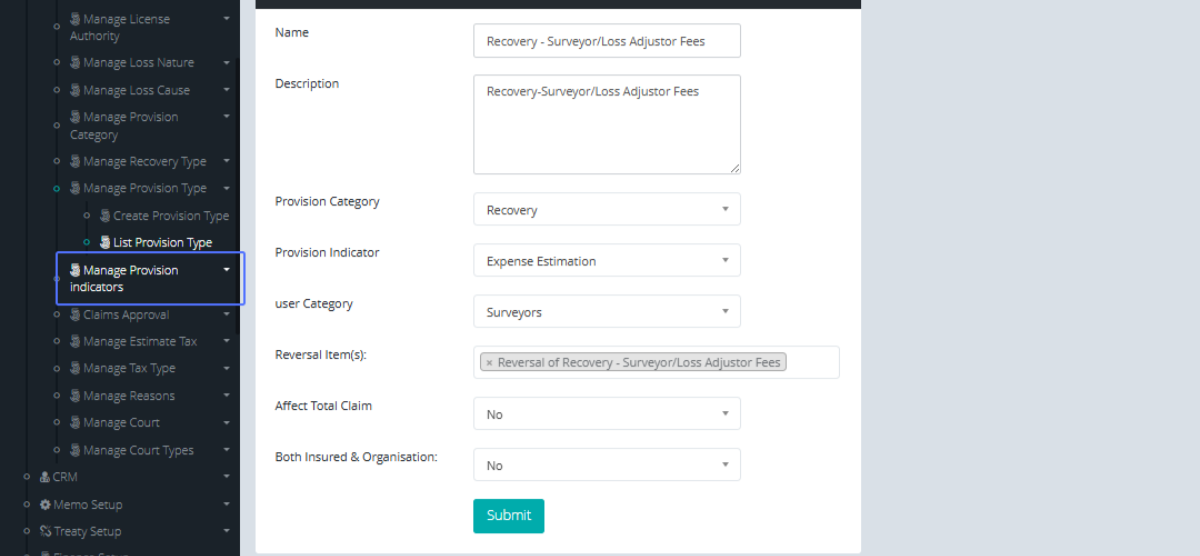
Click on the link "Manage Provision indicators" to view the submenus
Click on the link "Create Provision Indicator" to open the Provision indicator form
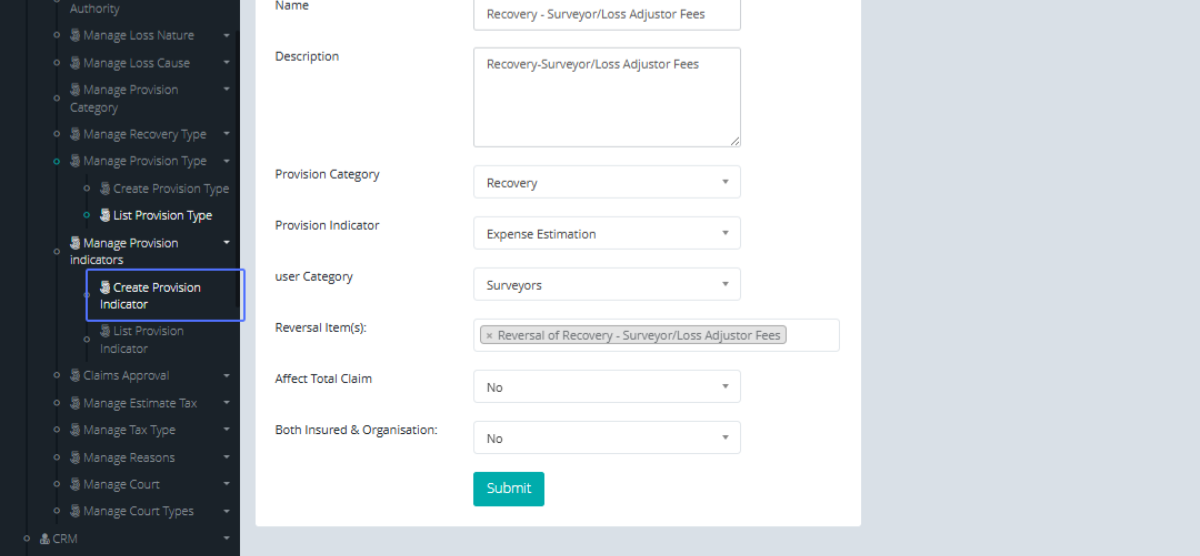
Tab Name: Create Provision Indicator - GENOVA INSURANCE
Enter the name within the provided input feild
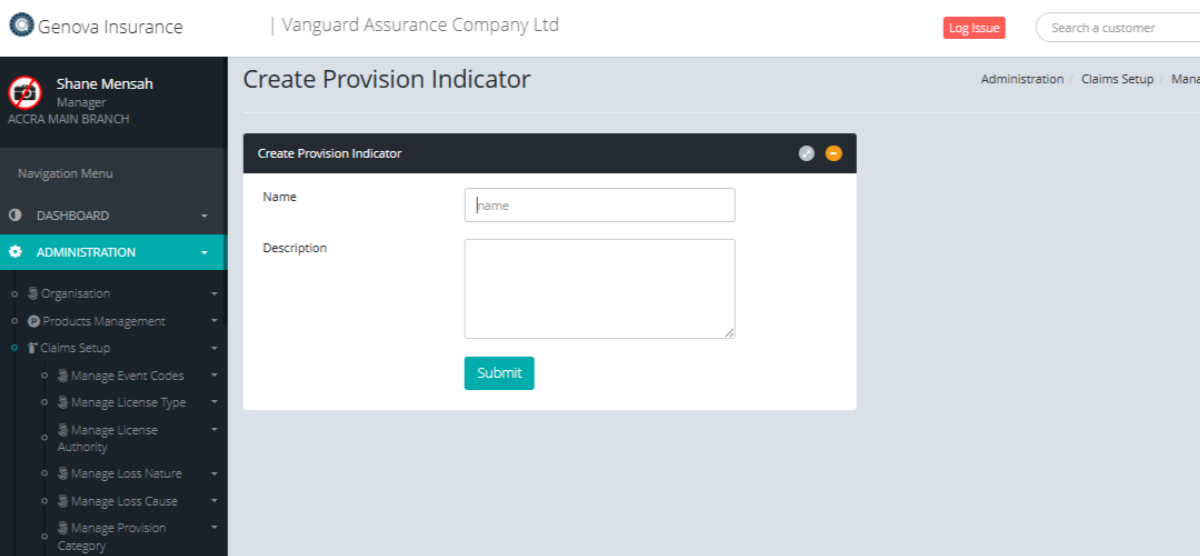
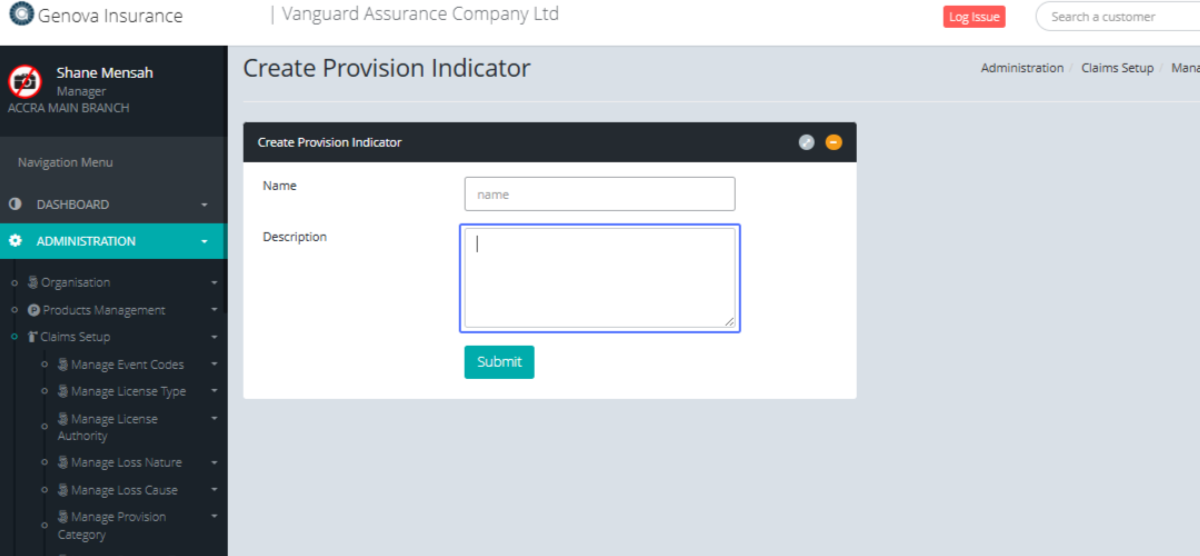
Enter the description within the provided input field
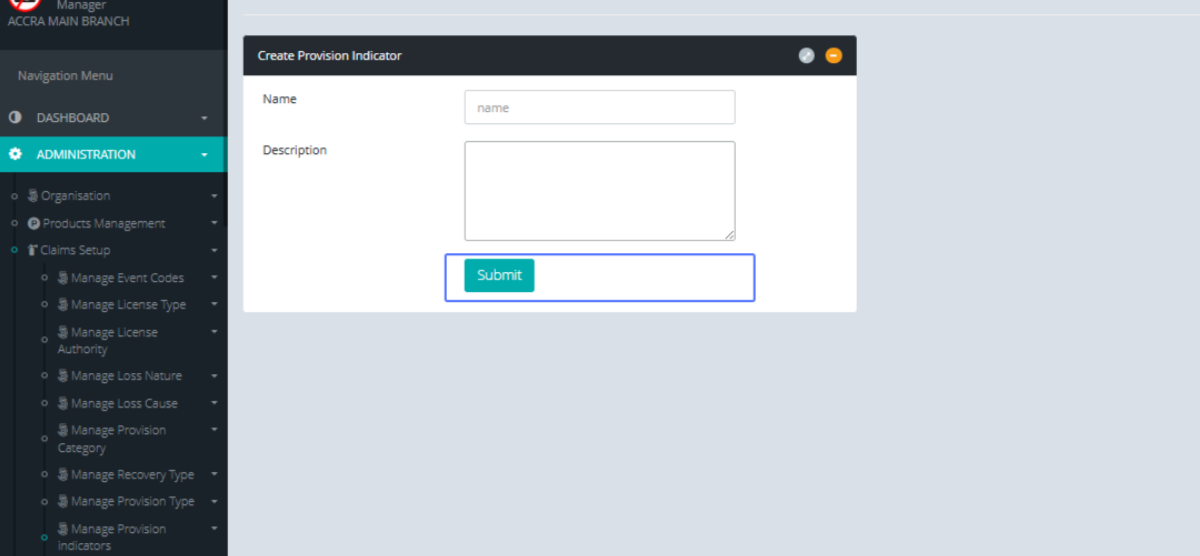
Click on "Submit" to save the Provision indicator
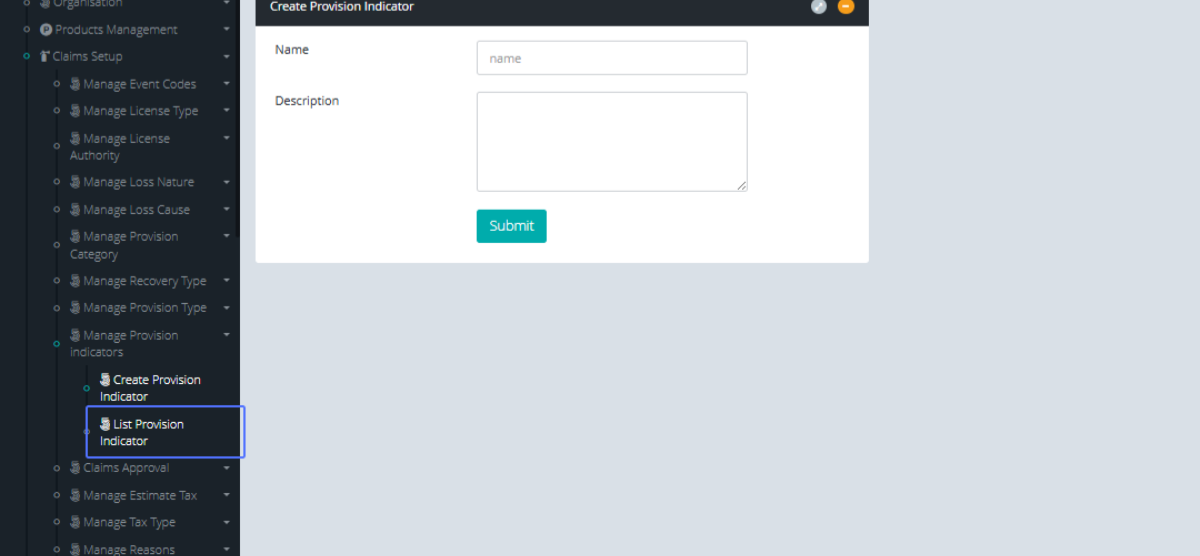
Click on the link "List Provision Indicator" to view the provision Indicator list
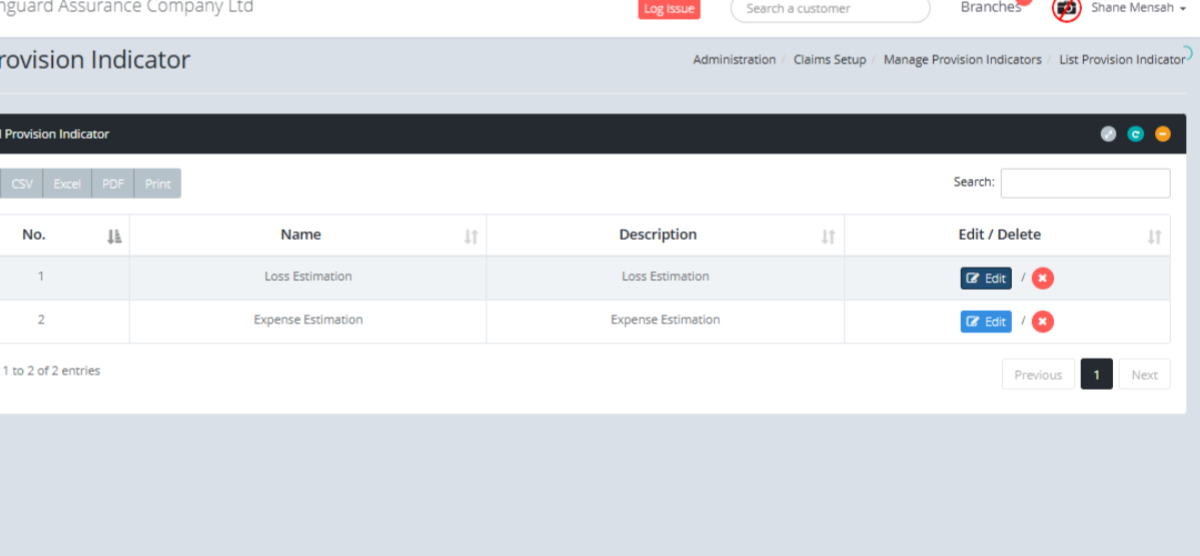
Tab Name: List Provision Indicator - GENOVA INSURANCE
Click on the "Edit" button to edit the specified resource
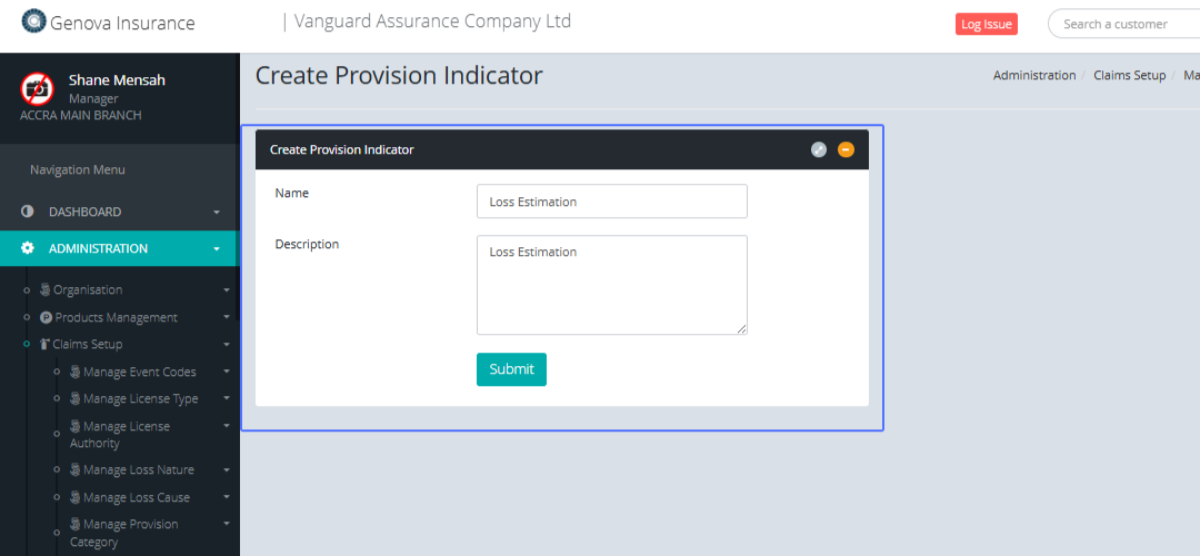
Tab Name: Create Provision Indicator - GENOVA INSURANCE
You will be provided with the existing provision Indicator form
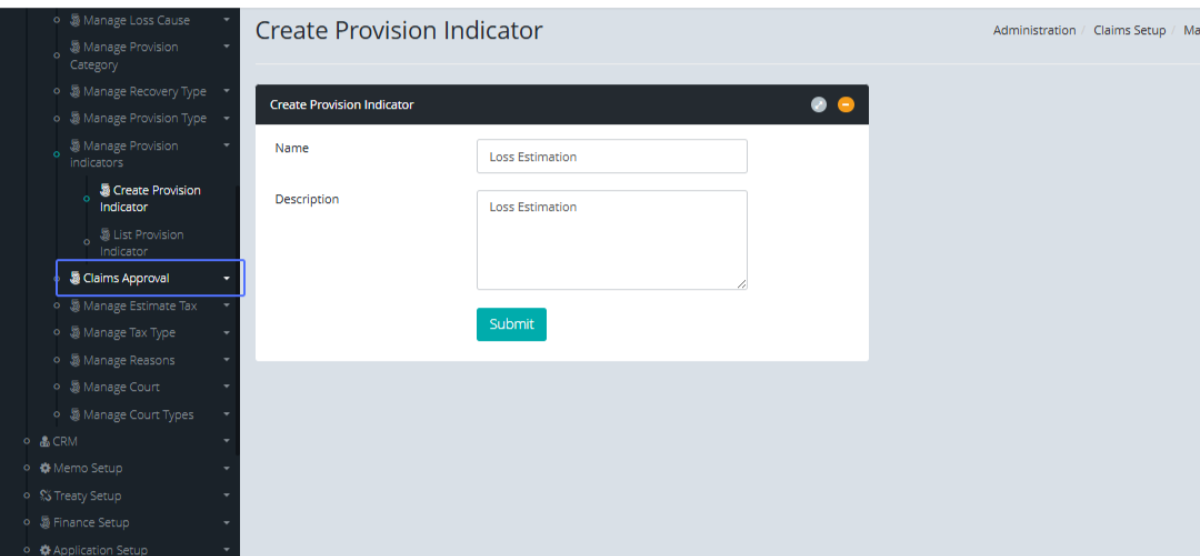
Click on the link "Claims Approval" to see the submenus
Click on the link "Create Estimate" to access the Estimate form
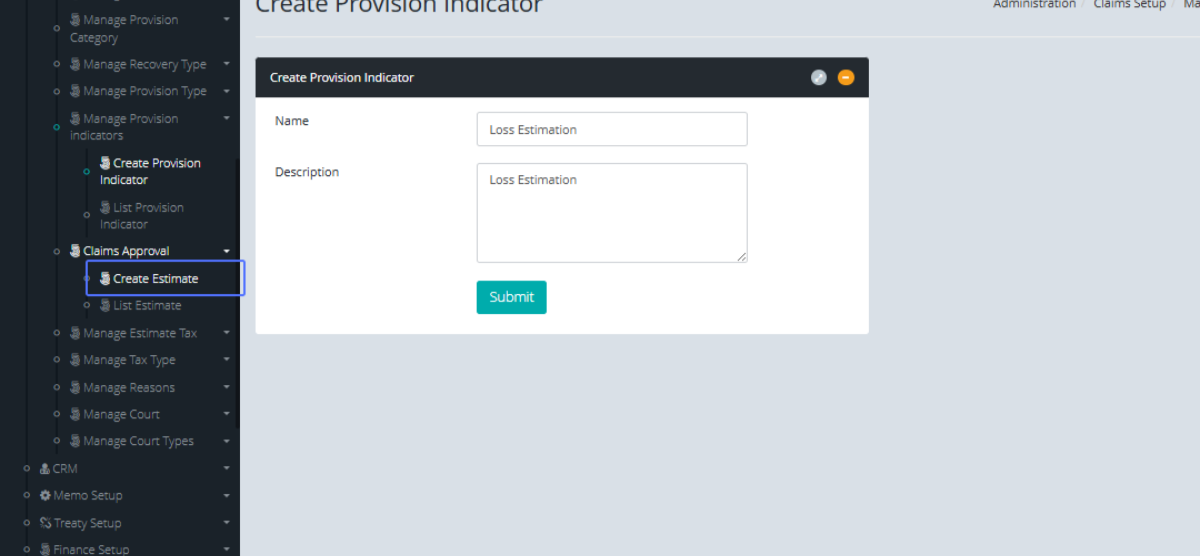
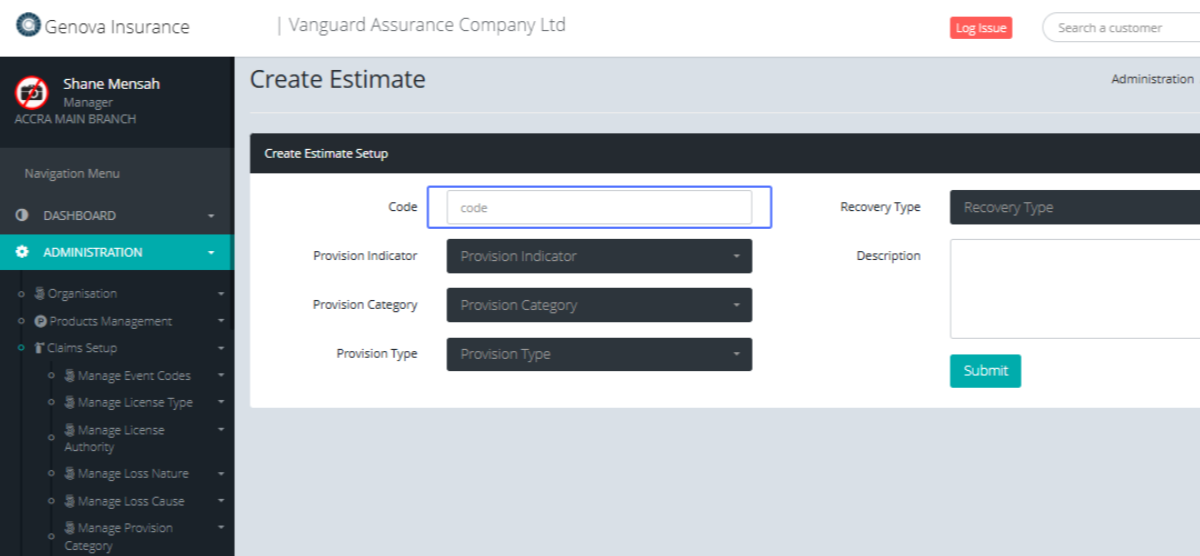
Tab Name: Create Estimate - GENOVA INSURANCE
Enter the code within the provided input
Select the Recovery Type within the provided dropdown

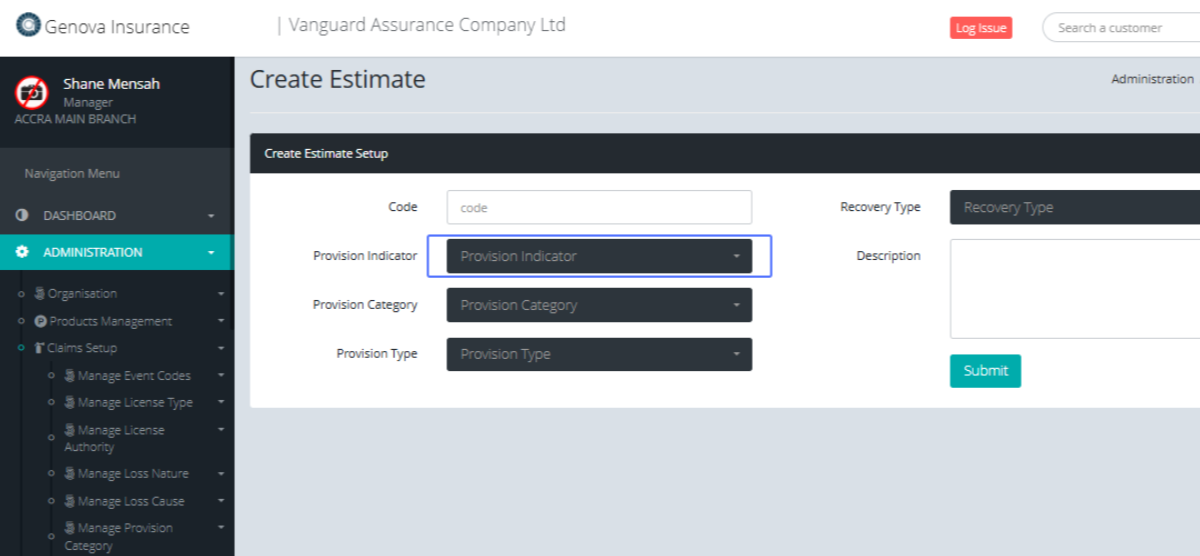
Select the "Provision Indicator " within the provided dropdown
Select the Provision Category within the provided dropdown

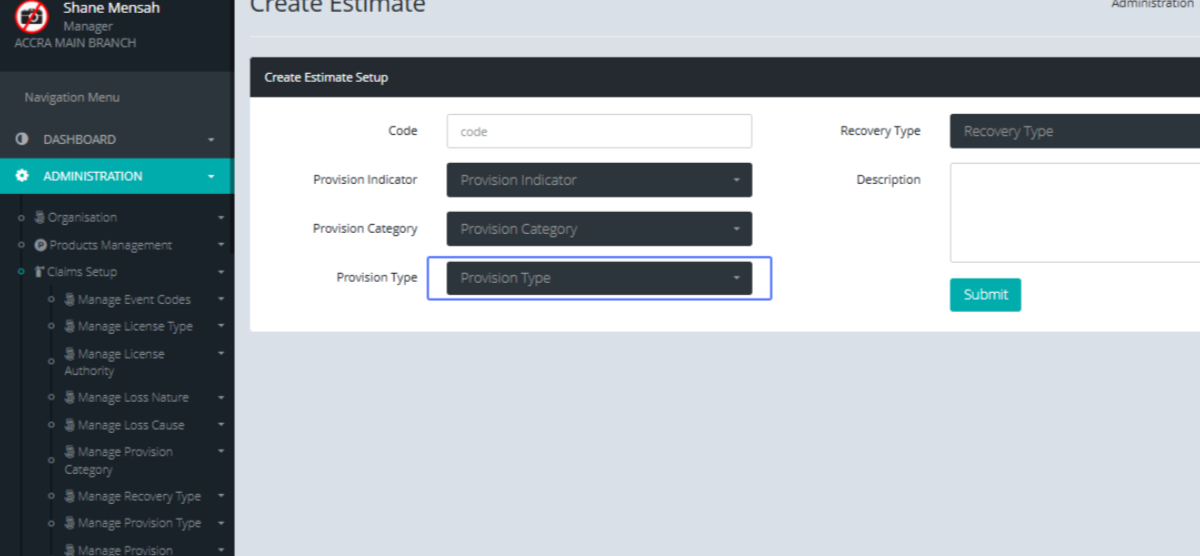
Select the provision type within the provided dropdown
Enter the description within the provided Input field
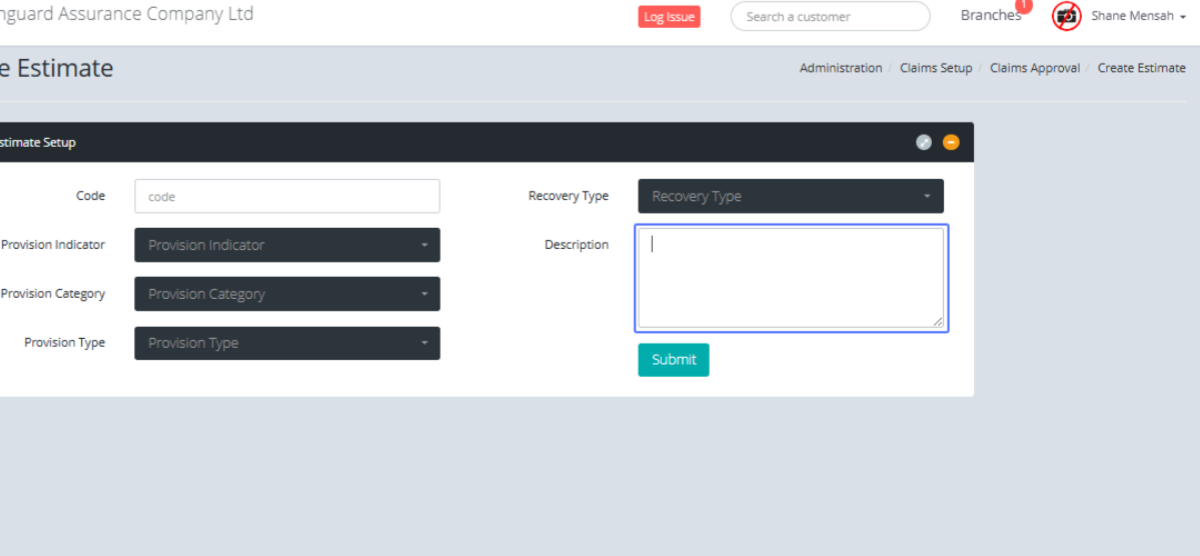
Click on "Submit" to save the Estimate
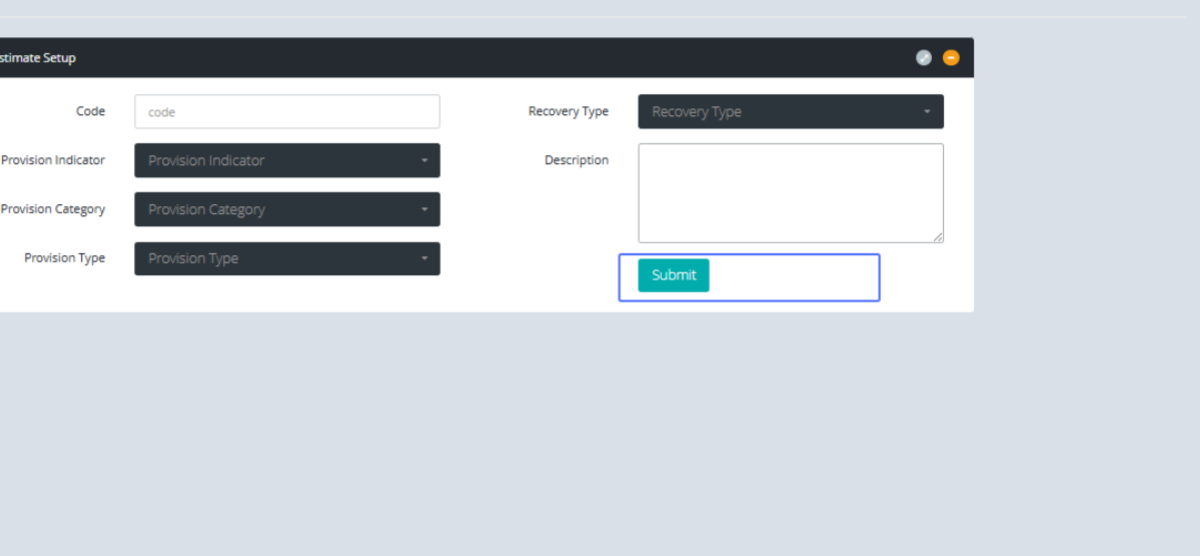
Click on the link "List Estimate “to view the Estimate list page

Tab Name: List Estimate - GENOVA INSURANCE
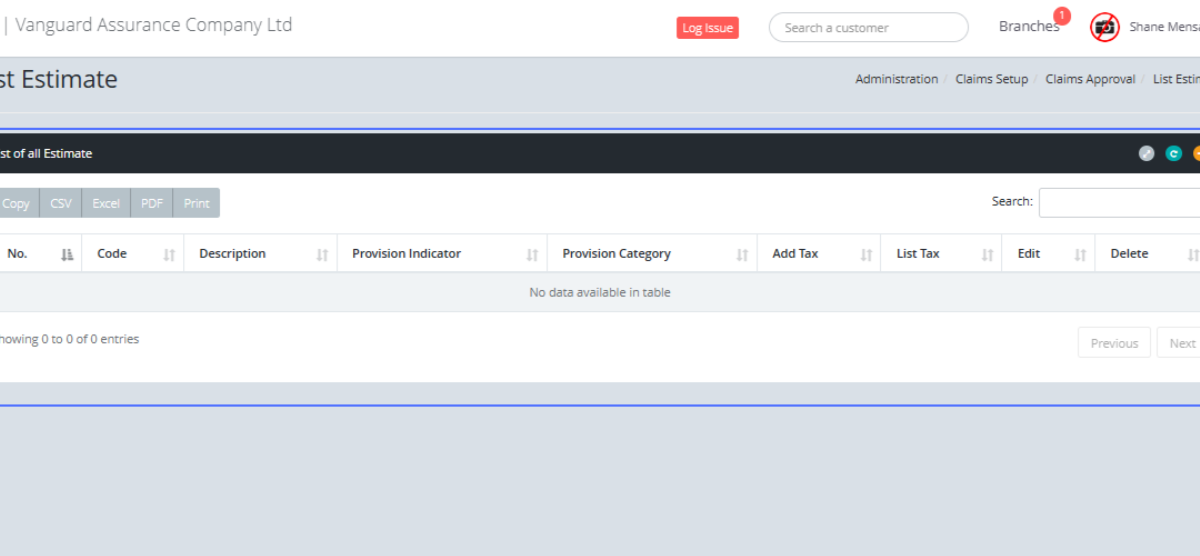
Estimate Lists would be shown within the table if available